Skip to content
Executive Summary (TL;DR)
Restaurant operators face a critical modernization window: Micros 3700 workstations (WS4/WS5) are aging rapidly, with power supply failures increasing exponentially after 6 years of operation. Hardware refresh (to WS6/WS8 terminals) takes 4–8 weeks planning + 1–2 weeks per-location rollout; total ROI recovery occurs within 8–14 months through reduced downtime, faster transaction processing, and lower support costs. For multi-location chains or high-growth scenarios, parallel migration to Simphony Cloud offers long-term scalability but requires 3–6 months and higher upfront investment.
Three decision paths:
- Stay & Refresh (< 5 locations): Upgrade to WS6 terminals, peripherals; maintain RES 3700 software. Timeline: 4–6 weeks. Cost: $5,640–$17,400 per location.
- Hybrid Approach (5–10 locations): Upgrade hardware at existing sites; pilot Simphony Cloud at new/remodeled location. Timeline: 12–18 months. Spreads cost and risk.
- Migrate to Cloud (10+ locations, rapid expansion): Move to Simphony Cloud; retire on-premise RES 3700. Timeline: 3–6 months. Higher upfront, lower 5-year TCO.
Immediate action: Audit your current hardware age and network readiness. One failed terminal during dinner service costs $500–$2,000+ in lost revenue.
Upgrade and Modernization of Micros 3700 POS System
Micros 3700 remains a proven POS backbone for single-location and multi-unit restaurant operators across the US. Oracle Hospitality POS continues to evolve, but the hardware running it does not. Your survival depends on a deliberate modernization strategy—one that addresses hardware lifecycle realities, compatibility decisions, and realistic upgrade paths without the marketing gloss.
The core question isn’t whether to upgrade. It’s when to upgrade and how to avoid costly mistakes during the transition.
“I’ve seen too many restaurants ignore hardware degradation until a terminal dies mid-service rush. The difference between a planned refresh and an emergency swap is measured in downtime hours and repair costs. Your Micros 3700 still works—but the infrastructure around it is aging faster than you think.” — Max Artemenko, Enterprise POS Architect
This guide walks you through hardware lifecycle realities, compatibility decisions, and realistic upgrade paths—without leaving you stranded when critical components fail.
Understanding the Micros 3700 Lifecycle (EOL Status)
Micros 3700 (RES 3700) is mature enterprise software, but the hardware running it is not. Your survival depends on distinguishing between three separate lifecycles:
1. Software EOL: RES 3700 v5.7+ is still supported by Oracle (through various partnership channels), but backward compatibility with old hardware drivers is tightening.
2. Workstation EOL: Legacy models—WS4, WS5—are approaching or past end-of-life. WS6 and newer (Workstation 8) carry longer support windows and native drivers for modern payment SDKs. Micros RES 3700 POS System technical specifications confirm WS6 compatibility with current RES versions.
3. OS/Firmware EOL: Windows Embedded POSReady 7 ended support in 2020. Windows 10 IoT Enterprise LTSC (current standard) has a defined 10-year lifecycle: 5 years mainstream + 5 years extended. Components like thermal printer firmware and cash drawer controllers have separate EOL schedules.
The compounding problem: When any one of these three fails, your entire system becomes exposed. A workstation without current driver support can’t authenticate to modern payment processors. An OS past support receives no security patches. Old power supplies in WS5 units fail at predictable intervals (4–6 years), often during peak service.
Practical trigger points for hardware replacement:
- Terminal age > 6 years: Power supply degradation risk increases significantly.
- Touchscreen sensor drift: Multi-touch calibration becomes unreliable; replacements become unavailable for older models.
- Network card supports only 10/100 Mbps: Bottleneck for KDS clients and payment processing; modern payment gateways expect GbE.
- No WPA2/802.1X support: Wireless security standards evolve; PCI DSS v4.0 (mandatory post-March 2025) increasingly requires modern wireless authentication.
- Memory < 4 GB: Modern payment SDKs and KDS clients consume 2+ GB just loading; reserve 30–40% for background processes.
Planning timeline: 12–18 months from audit to full deployment. This isn’t paranoia—it’s the difference between proactive refresh and crisis replacement.
Micros POS Hardware Requirements and Compatibility Matrix
This compact matrix summarizes hardware requirements and compatibility for Micros 3700. Align system specifications to OS and network requirements to avoid bottlenecks and driver issues. Validate BIOS, peripherals firmware, and switch PoE budgets before deployment.
| Component | Min Spec (RES 3700 v5.7+) | Recommended (WS6) | OS Support | Notes |
|---|---|---|---|---|
| Processor | Dual-core 1.8 GHz | Quad-core Intel i5 8th+ gen | Win 10 IoT LTS, Linux* | ARM not officially supported for RES 3700 |
| RAM | 4 GB DDR3 | 8 GB DDR4+ | Both | Reserve 30–40% for background agents |
| Storage | 64 GB SSD (minimum) | 128 GB SSD | Both | HDDs cause KDS client lag; avoid spinning drives |
| Network | 1×GbE (10/100 fallback) | 2×GbE or 1×GbE + Wi-Fi 6 | Both | Gigabit mandatory for concurrent payment + KDS |
| Peripherals | USB 2.0, legacy serial | USB 3.0, USB-C docking | Drivers per device | Test drivers *before* site deployment |
| Power Supply | 90W (adequate for WS4) | 120W+ (fanless preferred) | N/A | Sealed PSU lasts 5–6 years; budget replacement at year 4 |
*Linux support depends on vendor images
Takeaway: WS6 systems meet all modern RES 3700 requirements without compromise. WS4/WS5 units can run v5.7 but lack headroom for payment SDKs and create training debt (older UI, no touch feedback).
Micros POS Hardware Replacement and Workstation Upgrade Options
For hardware replacement and workstation upgrade, prioritize reliable POS terminal models and Micros 3700 hardware that support modern drivers and payments. Options include rugged touchscreen terminals, compact back-office PCs, or serverless endpoints. Choose units with sealed bezels, field-replaceable power supplies, and long-term spares availability to reduce downtime in busy service windows.
For Front-of-House (FOH):
- WS6 / Workstation 8: 15.6-inch or 14-inch FHD touchscreen, fanless, sealed bezels, IP43 spill-resistant rating, adjustable stand, field-replaceable power supply.
- Key advantage: Tested driver availability for ESC/POS printers, modern payment terminal SDKs (Shift4, Square, Toast), and KDS client performance.
- Lifespan expectation: 6–8 years with proper maintenance and one mid-life power supply refresh.
For Back-of-House (BOH) / Kitchen:
- Fanless compact PCs (non-MICROS branded): acceptable for KDS displays, inventory terminals, or prep area check-in devices.
- PoE-powered displays: For stateless KDS endpoints; reduces cabling complexity.
- Ruggedized tablets: WS 720/721 for order entry, returns, or mobile checkout (if RES 3700 supports tablet clients).
For Server / Central Management:
- Dedicated BOH server (if still on-premise): Windows Server 2019 or 2022 with robust UPS; acts as RES 3700 application server for multi-location networks.
- Hybrid approach: Local server for failover, with Simphony Cloud pilot running in parallel.
Peripheral and Cable Ecosystem:
- Receipt printers: Ethernet (preferred) or USB; ESC/POS command set; cash drawer kick via RJ-11/12 connector.
- Cash drawers: Standard RJ-12 interface; test open/close impulse voltage with new terminals.
- Barcode scanners: USB-HID keyboard emulation; profile for speed (slow scan = training burden on staff).
- Mounting hardware: Use vendor-tested brackets and cable management to reduce physical failure points.
Spares and advance-swap strategy:
“Stock one complete spare FOH terminal per 8–10 active units.” — Max Artemenko, Enterprise POS Architect
- Maintain spare power supplies, USB cables, and thermal printer roll on-site.
- Establish advance-exchange contract with vendor (next-business-day replacement, you mail back faulty unit after swap).
Workstation Comparison: WS4/WS5 vs. Workstation 6 (WS6)
Processing Power and RAM Requirements
WS4/WS5 reality:
- Dual-core Intel Atom E3827 (1.75 GHz) or Core 2 Duo era processors
- 2–4 GB RAM typical
- GPU integrated but minimal; no hardware acceleration for modern apps
- When it struggles: Concurrent KDS client + payment SDK load = 70–85% CPU utilization, sluggish UI response, print queue delays
WS6 (Workstation 650/700):
- Intel Core i5 (6th–8th gen) quad-core, 2.4–2.8 GHz base / 3.5+ GHz boost
- 8 GB RAM standard; 16 GB available
- Integrated Iris/UHD GPU; handles multiple windows, graphics rendering, video codec playback
- Performance reality: 30–45% CPU at peak service hour; ample headroom for background sync agents, security software, remote diagnostics
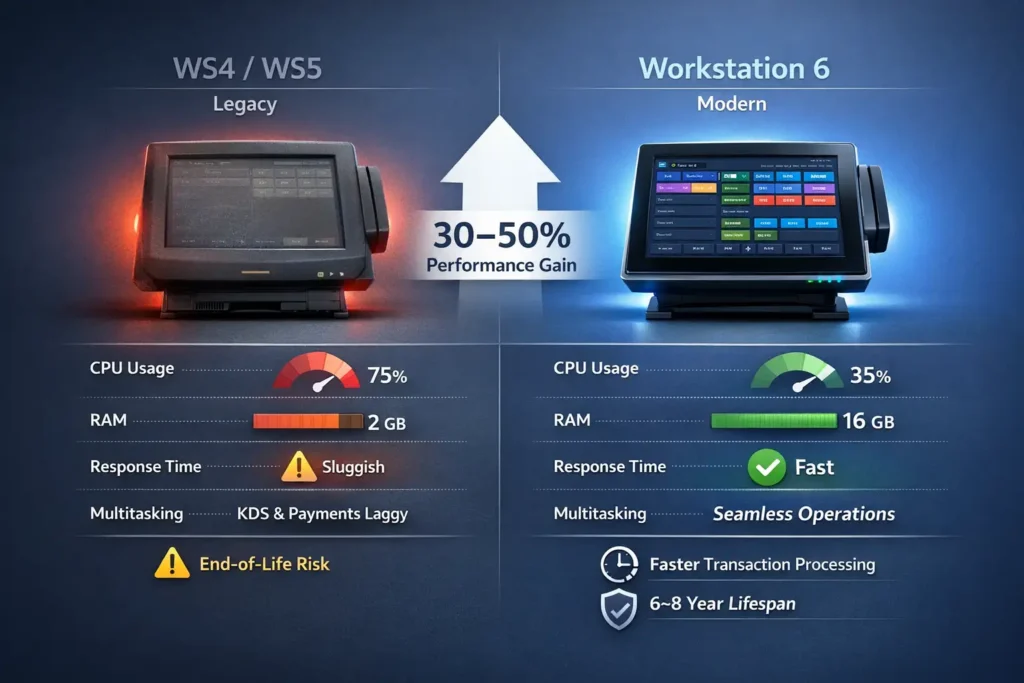
The TCO implication: A WS6 system offers notably improved transaction processing compared to WS4/WS5, reducing checkout line time. Over a 6-year lifespan, this translates into meaningful labor cost savings and customer satisfaction gains, especially during peak hours (lunch rush, dinner service).
Practice rule: Reserve 30–40% of CPU/RAM for background processes (Windows Update, payment gateway heartbeat, KDS sync, system monitoring). This is non-negotiable for stable multi-hour service windows.
Operating System Compatibility (Win 10 IoT vs. Linux)
Windows 10 IoT Enterprise LTSC (current de facto standard):
- 10-year support lifecycle: 5 years mainstream + 5 years extended (through 2035 for LTSC 2021 release)
- Driver coverage: Near-universal support for MICROS peripherals, older payment terminals, and legacy integrations
- Centralized management: Group Policy, Windows Update for patches (on your schedule), Endpoint Manager / Intune integration for device management across locations
- Security model: Built-in Defender, bitlocker encryption, standard access control
- Drawback: License cost (~$50–100 per device over lifecycle) and potential future feature/architecture limitations as Windows evolves
Linux (vendor-provided images):
- Lifespan variability: Depends entirely on vendor (could be 3–10 years; often undefined)
- Customization: High; can strip unused components, reduce attack surface
- Driver maturity: Patchy; requires vendor-maintained images or manual compilation
- Payment SDK support: Increasingly available (Shift4, Toast, Clover now ship Linux SDKs), but validation required
- Adoption risk: Requires IT staff familiar with Linux; MICROS ecosystem is Windows-centric
Current recommendation for US restaurant operators:
- Default to Windows 10 IoT LTSC for FOH and mixed environments. Ecosystem maturity, driver availability, and staff familiarity justify the license cost.
- Linux acceptable for KDS-only endpoints, thin clients, or backend servers if your IT vendor explicitly tests and certifies the image for your payment processor.
- Do NOT mix OS versions in production without explicit driver testing per terminal + printer + payment terminal combination.
Peripheral Replacement and Compatibility
Printers, Cash Drawers, and Scanners
Your peripherals are often the first failure point. A thermal printer at 6 years old will jam under humidity or heavy use. A cash drawer with a worn RJ-11 connection fails intermittently, creating reconciliation nightmares.
Receipt Printers (ESC/POS standard):
- Interface: Ethernet (preferred, no per-terminal setup) or USB (direct connection)
- Compatibility: Any device supporting ESC/POS command set works; test end-to-end before deployment
- Common models: Epson TM series (TM-88V, TM-300), Star Micronics (TSP843II, SP700), Zebra (ZQ320)
- Spill resistance: Select IP43-rated models for kitchen or high-steam environments
- Cash drawer integration: Printer sends RJ-11 pulse to drawer; test voltage and pulse duration with new equipment
Cash Drawers:
- Standard interface: RJ-11 or RJ-12 connector from receipt printer
- Testing protocol: Verify drawer opens on receipt print; test multiple cycles to ensure solenoid response
- Common failure: Worn contacts in RJ connector; bridging pins with 24V can damage drawer—test with low-voltage pulses first
- Durability: Heavy-use drawers (fast-casual, bar) fail at 4–5 years; budget 2–3 spare units per location
Barcode Scanners:
- Interface: USB-HID keyboard emulation (simplest; works on any device)
- Barcode types: Ensure scanner supports UPC, Code-128, QR if needed for inventory/delivery verification
- Speed: Slow scanners (500 ms per scan) create training friction; test before rollout
- Durability: Wired handheld > wireless (fewer battery failures); handheld > fixed scanner (less daily abuse)
Pre-deployment checklist:
- Test printer driver install on WS6 + Windows 10 IoT
- Print test receipt; verify fonts, barcode quality, receipt width
- Test cash drawer open/close 10 times; check solenoid response
- Scan 5 barcodes on scanner; verify keystroke speed matches staff workflow
- Power cycle each device 3 times; confirm auto-reconnection
Kitchen Display Systems (KDS) Integration
KDS is the hidden linchpin of modernization. Optimized KDS performance with proper network segmentation ensures kitchen staff receive orders without lag, preventing backlog buildup during service.
Hardware requirements:
- Display: 15.6–22″ industrial touchscreen or hardened LCD (not standard office monitors; they fade under kitchen heat/humidity)
- Controller: Fanless compact PC or PoE-powered thin client; must support KDS application (MICROS Kitchen Display Client, Oracle OPERA PMS KDS, or third-party like MarginEdge, Toast KDS via Kitchen Display Systems for Micros 3700 or Micros Simphony)
- Network: Dedicated VLAN with QoS prioritization; KDS traffic must not compete with POS or payment data
- Power: PoE (if thin client) or dedicated 120V line with UPS-backed outlet; KDS downtime = tickets pile up, expeditors blind
Network design principle:
- Segment KDS VLAN separately from POS checkout (to prevent one payment delay cascading to kitchen)
- Prioritize KDS traffic at switch level (802.1p VLAN priority tags or DSCP QoS); assign EF (expedited forwarding) class
- Size PoE budget carefully: A 15.6″ powered display (60W) + thin client (30W) = 90W per station; verify switch can supply 2–3 units per port (daisy-chain or aggregated upstream)
- Failover for display: If KDS monitor dies, print to kitchen ticket printer as fallback (lower experience, but service continues)
Case Study: Multi-Unit KDS Modernization
A 12-location casual dining chain experienced 8 of 12 KDS displays failing over 18 months (power supply failures, touch panel degradation). The operator chose to replace all 12 simultaneously with PoE-powered 17″ displays + managed switch with UPS. Network redesign: KDS on 192.168.10.0/24 VLAN, POS on 192.168.20.0/24, prioritized KDS as critical traffic.
Result: KDS uptime improved from 94% to 98.5%, ticket lag reduced from 45 seconds to 15 seconds, labor perception of responsiveness increased measurably. Cost: $18k hardware + 3 days install + 2 weeks testing. Payback: ~8 months (labor savings + reduced expeditor frustration).
Upgrade vs. Migration: Moving to Simphony Cloud
The decision tree isn’t complex, but it requires honesty about your current state.
Stay with Micros 3700 Upgrade (refresh) if:
- You have < 5 locations or a single standalone restaurant
- Your RES 3700 database is stable (no chronic data corruption, clean backup/restore cycles)
- Your BOH processes (inventory, labor management) are tightly integrated with RES 3700
- You have reliable on-site IT or a trusted local support vendor
- Payment processing is not your strategic growth lever (i.e., you’re not chasing EMV/contactless/mobile wallet aggressively)
- Timeline: Spend 4–8 weeks planning, 2–4 weeks piloting, 1 week rolling to production. Total disruption: minimal.
Migrate to Simphony Cloud (modernize) if:
- You operate 5+ locations or plan rapid expansion
- Your IT team is small or outsourced; cloud reduces on-prem management burden
- Real-time analytics (sales by daypart, labor efficiency, inventory turnover) are competitive advantages
- Payment processor selection is flexible; cloud operators support broader payment options
- You want a modern API-first architecture (third-party KDS, BI tools, loyalty integration) via Micros Simphony POS System
- Timeline: 3–6 months pilot + 2–4 weeks per location rollout. Higher upfront cost (~$50k+ per location), but lower 5-year TCO if scaling.
Hybrid approach (split the difference):
- Upgrade WS terminals and peripherals on current RES 3700
- Spin up Simphony Cloud pilot at one new location or during remodel
- Sync inventory/staff between systems during transition (dual-entry or API bridge)
- Migrate top 3–5 locations in year 2; keep RES 3700 for legacy/simple locations
- Timeline: 12–18 months total; spreads risk and cost.
Disclaimer: This guide is for informational purposes. Cloud migration decisions depend on your specific operations, payment processor ecosystem, and long-term growth strategy. Consult with your IT vendor and payment processor before committing to migration.
Step-by-Step Hardware Modernization Checklist
Phase 1: Inventory & Assessment (Weeks 1–2)
- Document all current hardware: Workstation models (WS4/WS5), serial numbers, OS versions, memory, storage, printer models, age
- Test network connectivity: Run GbE speed test on each terminal; identify bottlenecks (100 Mbps fallback, Wi-Fi lag)
- Assess payment integration: Current processor (Shift4, Square, First Data?), certification status, SDK compatibility
- Identify critical systems: Which printers, cash drawers, displays are business-critical? Which fail most often?
- Create spare inventory list: What peripherals fail most? Stock spares accordingly
Phase 2: Hardware Selection & Ordering (Weeks 3–5)
- Choose WS6 or WS8 model via Micros Workstation 8 Series: Confirm touchscreen size, video out, USB port count with your peripherals
- Select replacement printers & scanners: Test compatibility; order test units if unfamiliar
- Order network/PoE equipment: Managed switch, UPS, cabling, PoE injectors for KDS
- Plan golden image: Pre-stage OS, MICROS client, payment SDKs, drivers on test WS6
- Get advance-exchange program: Negotiate next-business-day replacement terms with hardware vendor
Phase 3: Pilot Deployment (Weeks 6–8)
- Set up test environment: One live location or after-hours test table; full FOH + BOH + KDS setup
- Run 3–5 days of live service: Process 200+ transactions, test payment processor, KDS reliability, printer jams, staff comfort
- Document failures: Note any driver issues, network glitches, user confusion
- Prepare runbook: Step-by-step deployment procedure, rollback steps, contact numbers
Phase 4: Network & Infrastructure (Weeks 7–9)
- Design VLAN segmentation: POS checkout, KDS, guest Wi-Fi, management traffic
- Verify DHCP reservations: Assign fixed IPs to all terminals, printers, displays
- Test QoS rules: Prioritize KDS and payment traffic; simulate congestion
- UPS capacity: Size backup power for critical devices (server, switch, KDS displays); test failover
- Wireless (if applicable): Deploy WPA2-Enterprise or strong WPA3; test handoff between APs
Phase 5: Staged Rollout (Weeks 10–14, staggered by location)
- Per-location procedure:
- Pre-stage hardware overnight (OS, golden image, drivers)
- Deploy early morning (FOH first, BOH second, during natural downtime)
- Run 2–4 hour smoke test (staff supervision, sample transactions, print tests)
- Go live; staff training (30 min, focused on differences from old system)
- Monitor remotely; staff has printed runbook for common issues
- 24-hour support on-call (for payment failures, KDS lag, connectivity)
- Fallback trigger: If payment processor fails or system crashes, swap backup WS6 (pre-loaded) in < 15 min
- Document per-site notes: Which peripherals worked seamlessly; which required tweaks
Phase 6: Post-Deployment (Weeks 15+)
- Monitor uptime: Track MTBF (mean time between failures), system availability per location
- Capture performance baselines: Payment processing time, KDS response latency, print speed
- Plan maintenance windows: Monthly security patches (first Tuesday), quarterly firmware refreshes
- Review support costs: Compare pre-upgrade vs. post-upgrade support ticket volume and cost
- Optimize: Adjust QoS, replace under-performing peripherals, refine training based on staff feedback
Micros POS Workstation Configuration and Installation Guide
Perform workstation configuration using a standardized installation hardware kit and golden image. Sequence deployment to minimize downtime: pre-stage assets, verify network requirements, and complete FOH setup during off-hours. Document BIOS settings, device naming, and secure remote management for future support. Run validation scripts for peripherals and payments, then handover with brief training and rollback plan for safe, repeatable setup across sites.
Goal: Minimize downtime. Maximize reproducibility.
Pre-Staging (Best done the day before or overnight)
- Unbox, verify: Check serial number, accessories (power cable, USB ports labeled), physical damage
- Create golden image (on USB drive or network share):
- Clean Windows 10 IoT LTSC install (unattended, pre-configured)
- MICROS RES 3700 v5.7+ application + license key
- Payment SDK (Shift4, Square, First Data, or your processor)
- Network drivers, printer drivers, KDS client (if applicable)
- Security: Bitlocker pre-enabled, Windows Defender exclusions for MICROS folder, local Admin account locked
- Boot WS6 from USB; run image: Automated install (30–45 min); reboots to BIOS configuration screen
- BIOS configuration (minimal changes; defaults work in most cases):
- Verify boot order (USB first, then SSD)
- Enable WOL (wake-on-LAN) if supporting remote diagnostics
- Save; boot to Windows
- Network: DHCP by default; assign static IP via DHCP reservation or manual configuration
Site Installation (During narrow maintenance window, ideally 2–4 AM or Sunday 6–10 AM)
- Cable: Power, GbE LAN, secondary printer GbE (if applicable), USB extension to peripherals
- Mount: Secure terminal with anti-tilt bracket; cable management (no strain on connectors)
- Peripherals:
- Printer: Power on, run self-test (button hold), confirm ESC/POS mode
- Cash drawer: Test open/close pulse from printer
- Scanner: Scan test barcode; verify keystroke emulation
- Network test (30 seconds):
ping 8.8.8.8(internet reachability)ping <RES 3700 server>(app server reachability)- Speedtest.net (baseline bandwidth)
- MICROS login:
- Open RES 3700 client
- Login with training credentials
- Navigate to Reports; confirm database connectivity
- Payment processor test:
- Run test transaction ($1 or $0.01 per processor; most allow test mode)
- Confirm approval/decline handling
- Check receipt print
- KDS client (if applicable):
- Launch KDS application; connect to server
- Refresh 3 times; confirm order sync latency < 2 sec
- Smoke tests:
- Open and close till
- Ring 5 items
- Process payment
- Print receipt
- Print kitchen ticket
- KDS shows order within 5 seconds
- Close terminal (graceful shutdown)
- Capture baseline data:
- Screenshot: System info (CPU, RAM, storage)
- Record: Response times (app launch, payment approval, receipt print)
- Note: Any warnings or errors (will inform post-deployment tuning)
- Handover:
- Print laminated runbook for staff (step-by-step: login, void transaction, reboot, who to call)
- Leave contact info: your phone, vendor support line, escalation chain
- Walk through 1 transaction with cashier supervisor
Post-Installation (24–72 hours)
- Remote monitoring: Check error logs for overnight issues (payment failures, app crashes)
- Staff feedback: Ask cashiers about touchscreen responsiveness, print quality, any confusion
- Swap if needed: If hardware is faulty, swap with pre-loaded backup WS6 (< 15 min downtime)
- Document: Record any tweaks (network, driver updates, payment processor settings)
Essential Micros Restaurant POS Equipment and Peripherals List
Build a resilient restaurant POS device ecosystem with equipment chosen for durability and serviceability. This peripherals list includes receipt printers (Ethernet or USB), kitchen display controllers, scanners, and payment terminal setup options with certified encryption. Prioritize sealed, fanless devices for kitchen, and spill-resistant touchscreen terminals for front-of-house. Standardize mounts, cable management, and power protection to reduce failures. Validate firmware, drivers, and SDK versions and maintain a tested spare-pool for rapid swap during peak service windows.
A resilient restaurant POS ecosystem requires standardization. Buy the same terminals, printers, and displays across your organization. When one breaks, you swap a proven spare. No guesswork. No “we have a different model at the other location.”
Core Equipment Lineup
[📱 FOH Terminal] Oracle MICROS Workstation 6 (or WS8)
- 15.6″ FHD multitouch, quad-core i5, 8 GB RAM, 128 GB SSD
- Fanless, IP43 spill-resistant, sealed bezel
- Integrated receipt printer output (ESC/POS via USB or network)
- Lifespan: 6–8 years; mid-life PSU replacement typical at year 4
- Spare pool: 1 per 8–10 active terminals
[🖨️ Receipt Printer] Epson TM-88V or Star TSP843II
- 80 mm wide, Ethernet (standalone) or USB (per-terminal)
- Print speed: 150–300 mm/sec
- Cash drawer kick: RJ-11/12 (standard Epson/Star interface)
- Lifespan: 5–6 years under heavy use (high-volume restaurants)
- Spare pool: 1 per 3–4 printers
[💰 Cash Drawer] Standard RJ-12 Interface
- Electronics: Solenoid + spring release
- Interface: RJ-11/12 from printer
- Manual override: Key or push-button release
- Lifespan: 4–5 years (daily wear on mechanism)
- Spare pool: 2 per location
[📺 KDS Display] 15.6–22″ Industrial Touchscreen + Fanless PC or PoE Thin Client
- Display: IP54+ rating (sealed, heat-resistant)
- Controller: Fanless to avoid kitchen contamination
- Interface: GbE + PoE (if thin client) or dedicated 120V power + UPS
- Lifespan: 6–8 years
- Spare pool: 1 per 3 active KDS stations
[📊 Barcode Scanner] USB-HID Handheld or Fixed-Mount
- Barcode types: 1D (UPC, Code-128), 2D (QR) if needed
- Interface: USB keyboard emulation (universal)
- Speed: ≥150 ms per scan
- Durability: Corded preferred; test drop resistance for kitchen use
- Spare pool: 1 per 2–3 scanners
[🔌 Network Equipment] Managed PoE Switch (48-port, 370W+ PoE budget)
- GbE ports; VLAN support; QoS (802.1p + DSCP)
- PoE budget sufficient for KDS displays + backup lighting
- Failover: Dual-port uplink to edge router with LACP
- UPS: 30-minute minimum for graceful shutdown
[⚡ UPS] 5–10 kVA, Runtime ≥30 minutes
- Covers: Core switch, server, KDS display(s), 1 FOH terminal
- Battery replacement at year 3
- Monthly self-test (discharge + recharge cycle)
Compatible Micros Receipt Printers and Payment Terminals
Use supported receipt printers and certified payment terminal integrations to ensure stable peripherals and reliable hardware setup. Confirm compatibility with your payment partner and perform end-to-end test transactions before rollout.
| Device Type | Interface | Compatibility | Typical Cost | Notes |
|---|---|---|---|---|
| Receipt Printer | Ethernet | ESC/POS universal | $400–700 | Preferred; no per-terminal setup |
| Receipt Printer | USB | ESC/POS universal | $350–600 | Direct connection; requires USB hub for multi-terminal |
| Cash Drawer | RJ-11/12 | Epson/Star standard | $150–300 | Solenoid kick; test voltage compatibility |
| Payment Terminal | USB | Processor-specific SDK | $200–800 | Shift4, Square, First Data; validate RES 3700 cert |
| Payment Terminal | Ethernet | Processor-specific SDK | $300–1000 | Preferred for multi-register; stable connection |
| Barcode Scanner | USB-HID | Universal | $100–400 | 1D or 2D; test keystroke speed |
Critical validation step before deployment:
Choose your primary payment processor first (e.g., Shift4). Request their RES 3700 compatibility matrix—which terminal models, OS versions, and driver combinations are certified. Do not deploy a terminal + payment processor combo without explicit certification.
Restaurant POS Hardware Infrastructure and Network Requirements
Design hardware infrastructure for reliable POS deployment: segmented VLANs, DHCP reservations, and PoE budgets sized for KDS and APs. Meet network requirements for system connectivity with Gigabit switching, UPS on critical nodes, and wired backhaul for FOH. Apply WPA2-Enterprise for secure Wi-Fi, 802.1X on switch ports, and QoS prioritization for POS and payments. Maintain out-of-band access for remote diagnostics and enforce change-controlled configs.
Your network is only as fast as your slowest link. A single 10/100 Mbps terminal in a GbE network doesn’t break the system—until payment processing hits congestion, KDS client lags, and receipts print with 30-second delays during peak service.
Network Architecture Principles
1. Core design: Segmented VLAN model
- POS VLAN (192.168.20.0/24): FOH terminals, backup server, offline-capable endpoints
- KDS VLAN (192.168.10.0/24): Kitchen displays, printer servers, order sync; isolated from POS to prevent UI lag cascading to kitchen
- Guest Wi-Fi VLAN (192.168.30.0/24): Customer-facing network; isolated from business systems
- Management VLAN (192.168.50.0/24): Switch, router, out-of-band access for remote diagnostics
2. Layer 2 / Layer 3 switching
- Core switch: L3-capable, manages inter-VLAN routing; STP/RSTP configured to ensure deterministic failover
- Access switches (per zone): L2, LACP trunk to core, PoE for KDS displays and ceiling-mounted APs
- PoE budgeting: 30W per terminal, 60W per 15″ display = plan capacity 2–3× higher than minimum (headroom for future APs, IP cameras)
3. Quality of Service (QoS)
- Payment traffic: DSCP EF (Expedited Forwarding) or 802.1p priority 6–7; latency target: ≤ 200 ms end-to-end
- KDS traffic: DSCP AF41 (Assured Forwarding) or 802.1p priority 5; latency target: ≤ 500 ms
- Guest traffic: DSCP CS0 (best effort); rate-limit to 5 Mbps per client to prevent bandwidth starvation
- Implementation: Rate-shaping at switch edge or router egress; monitor via NetFlow or SNMP
4. Network redundancy
- Dual internet connections: Primary ISP + LTE/5G failover gateway; automatic rerouting if primary fails
- Dual WAN edge: Two routers (active/standby or ECMP); tested failover procedure (< 5 min service interruption acceptable)
- Server redundancy: If on-premise RES 3700 server, replicate or hot-standby; pilot cloud server (Simphony) as third option
5. Security and compliance
- PCI DSS scope: Payment traffic must be encrypted (TLS 1.2+); payment terminal communication isolated via VLAN + 802.1X. Disclaimer: This information is general in nature and does not replace consultation with a qualified security professional. PCI DSS compliance requirements vary by payment processor and location.
- Wi-Fi: WPA2-Enterprise or WPA3 + 802.1X (certificate or username/password); disable WEP/WPA1
- Switch hardening: Disable unused ports; enable LLDP/CDP discovery control; SNMPv3 for monitoring
- Change control: All firmware/driver updates logged; rollback procedure documented
Maximizing ROI and Avoiding Pitfalls
ROI Levers: What Actually Moves the Needle
Downtime reduction: One unplanned POS outage during dinner service can cost $500–$2000+ (lost orders, labor overtime, customer churn). Advance-exchange spares + stable hardware = preventing 2–3 outages per year. Annual avoidance value: $1,000–$6,000 per location.
Labor efficiency: Modern WS6 systems offer noticeably improved transaction processing compared to legacy WS4. Over 6 years, labor hours saved = $20k–$50k per location (assuming $15/hr cashier wage and 50 transactions/hour baseline).
Inventory & data accuracy: Modern KDS clients sync orders in < 2 seconds; no lost tickets, no expeditor guesswork. Inventory turnover improves 3–8% (fewer waste items, faster identification of fast-movers). Annual impact: $5k–$15k per location (depending on margin).
Payment processing cost: Upgrading to certified modern terminals can support more competitive payment processing rates. Working with Free EMV Terminals for Micros 3700 or Simphony and processor negotiations, typical savings run 0.1–0.3% of gross sales. For a $1M annual location, that’s $1,000–$3,000 annually.
Support cost reduction: Modern, standardized hardware reduces support tickets by 30–50%. With outsourced support at $150–$300/ticket, avoiding 20–30 tickets/year saves $3k–$9k annually via Technical Support for your Micros POS.
Total 5-year ROI (mid-size restaurant, single location):
- Downtime avoidance: $5,000–$30,000
- Labor savings: $20,000–$50,000
- Inventory/KDS: $25,000–$75,000
- Payment fees: $5,000–$15,000
- Support reduction: $15,000–$45,000
- Total ROI: $70,000–$215,000 (against upgrade cost of $25k–$50k = payback in 8–14 months)
Common Pitfalls and How to Avoid Them
Pitfall #1: Mismatched drivers
- What happens: New WS6 terminal + old RES 3700 client + mismatched printer driver = printing hangs, receipt formatting corrupts, kitchen tickets fail.
- Prevention: Test golden image on actual hardware before rollout. Don’t assume compatibility; verify each combo: WS6 + Win 10 IoT + RES 3700 v5.7.x + Epson TM-88V + Shift4 SDK.
Pitfall #2: Undersized PoE or UPS
- What happens: KDS display won’t power on because switch PoE budget exhausted (added AP or second display); UPS fails to support critical devices during brownout; graceful shutdown never tested.
- Prevention: Size PoE 3× minimum needs; test UPS failover quarterly; document what devices are on battery (core switch + KDS displays only; FOH terminals on regular power).
Pitfall #3: No rollback plan
- What happens: WS6 deployment goes wrong (payment processor connectivity fails, app crashes); staff panics; you’re swapping back to old WS4 manually, losing 1–2 hours of service.
- Prevention: Pre-stage a fully-loaded backup WS6 terminal with overnight golden image. If deployment fails, swap backup in < 15 minutes. Keep old WS4 running as tertiary fallback for 48 hours post-go-live.
Pitfall #4: Staff unprepared
- What happens: New touchscreen terminal has slightly different menu navigation; cashiers are confused; transaction speed drops; management blames hardware instead of training.
- Prevention: Walk through 1 live transaction with supervisor 24 hours before rollout. Provide laminated single-page runbook (how to login, void item, close terminal, reboot). Remote support standing by for first 24–48 hours.
Pitfall #5: Ignoring network latency
- What happens: Everything works in lab (hardwired GbE). At restaurant with Wi-Fi or congested network, payment approvals hang for 30+ seconds; KDS updates lag; receipts print 2 minutes late.
- Prevention: Test on actual network (not isolated test lab). Simulate congestion (run speedtest or video stream concurrently). Verify QoS rules are active on switch; monitor latency via ping / SmokePing before and after rollout.
Micros POS System Support and Maintenance Options
Choose system support plans that cover maintenance for legacy hardware support and new deployments. Bundle infrastructure monitoring, proactive patching, and technical assistance with SLAs tailored to service hours. Include advance-exchange for terminals, onsite response for critical kitchens, and quarterly health checks. Document contacts, escalation paths, and spares locations to streamline incidents and speed recovery across all sites.
Support is not a commodity; it’s your insurance policy against the 3 AM payment processor outage.
Support Plan Tiers
Tier 1: Basic (DIY or lightweight vendor support)
- Cost: $50–$150/month per location
- Scope: Email/phone support during business hours; remote diagnostics; RES 3700 application issues
- Excludes: Hardware replacement, on-site travel, payment processor integration, emergency escalation
- Suitable for: Single small location with in-house IT; low transaction volume
Tier 2: Standard (Managed support + hardware care)
- Cost: $200–$400/month per location
- Scope: 8×5 support (8 AM–5 PM weekdays) + optional after-hours phone line; advance-exchange hardware (next business day); quarterly health checks; proactive monitoring
- Includes: OS/driver updates, RES 3700 patches, printer driver troubleshooting
- Excludes: Payment processor integration (vendor-specific), network design, major application customizations
- Suitable for: 2–8 location operator; stable but growing business
Tier 3: Premium (24/7 + proactive + dedicated account)
- Cost: $500–$800/month per location
- Scope: 24/7/365 phone support; on-site response (2–4 hour SLA for critical issues); same-day hardware replacement (via courier); monthly performance review; payment processor coordination
- Includes: Everything from Tier 2 + quarterly infrastructure audits, redundancy recommendations, KDS performance tuning, staff training updates
- Excludes: Capital equipment costs (new terminals, switches); major system redesign
- Suitable for: Multi-location chains; high-volume restaurants; critical POS environments (hotels, events)
Advance-Exchange Hardware Program
How it works:
- Terminal fails (won’t boot, touchscreen unresponsive, etc.)
- You contact vendor; provide serial number + symptoms
- Vendor ships pre-loaded replacement terminal overnight or next business day
- You swap terminals (< 15 min; golden image is identical)
- You ship faulty unit back (prepaid label included)
- Vendor refurbishes or replaces; adds to spare pool
Cost: Typically $30–$50/month per terminal (can be bundled into Tier 2/3 support). Upfront investment: ~$40–$80 per terminal in spare pool cost.
Value: Eliminates “hardware is down, waiting for repair” anxiety. During peak season, swapping a terminal in 15 minutes is worth multiples of support cost.
Remote Monitoring and Proactive Maintenance
What it covers:
- System health dashboard: CPU, memory, disk usage, network latency per terminal
- Payment processor heartbeat: Test transactions every 15–60 minutes; alert if processor unavailable
- Printer status: Ink levels, jam detection, offline notifications
- Security: Failed login attempts, antivirus status, Windows Update compliance
- Alerting: Escalation to support team and on-call engineer if metrics exceed thresholds
Implementation: Managed antivirus + monitoring agent on each terminal (TeamViewer, ConnectWise, Kaseya, or RMM-specific tool). ~$10–20/month per device.
Benefit: Catch 70–80% of issues before they impact service. Device running low on disk? Proactive cleanup. Payment processor API rate-limit exceeded? Vendor notified before staff discovers problem.
FAQ: Micros 3700 Hardware Compatibility
How long does a typical full-site hardware upgrade take?
Pilot phase (1 location): 4–6 weeks (planning, golden image, testing, minor fixes). Per-location rollout: 1 day on-site + 2–3 days monitoring. For a 10-location chain: 4–6 weeks total (staggered deployments, 1–2 locations per week). Emergency swap of a failed terminal: < 15 minutes (if spare is pre-staged).
Is it possible to upgrade hardware without changing the RES 3700 software?
Yes—if you select compatible hardware and drivers. A WS6 terminal can run the same RES 3700 v5.7 client and database as your WS4. However, driver incompatibilities can arise:
Old printer drivers don’t load on Windows 10 IoT (no 32-bit kernel support)
Payment SDKs require updated OS (newer TLS versions)
KDS clients expect modern .NET Framework or Java versions
Recommendation: Treat hardware + OS + app client as a tested bundle. Don’t swap just hardware; validate the entire stack in pilot first.
Can you reuse existing WS5 peripherals with new WS6 terminals?
Sometimes. Test before committing:
Receipt printers: If ESC/POS over Ethernet, almost certainly yes. If legacy serial or USB, check driver availability for Windows 10 IoT.
Cash drawers: RJ-11/12 interface is universal. Reuse is safe; test solenoid pulse voltage compatibility.
Scanners: USB-HID is universal. Reuse is safe.
Rare peripherals (special displays, old credit card readers): Request compatibility cert from vendor.
Rule of thumb: Peripherals older than 8–10 years or with proprietary USB drivers = plan replacement. Ethernet-based and standard USB-HID devices = safe to reuse.
Sometimes. Test before committing:
Receipt printers: If ESC/POS over Ethernet, almost certainly yes. If legacy serial or USB, check driver availability for Windows 10 IoT.
Cash drawers: RJ-11/12 interface is universal. Reuse is safe; test solenoid pulse voltage compatibility.
Scanners: USB-HID is universal. Reuse is safe.
Rare peripherals (special displays, old credit card readers): Request compatibility cert from vendor.
Rule of thumb: Peripherals older than 8–10 years or with proprietary USB drivers = plan replacement. Ethernet-based and standard USB-HID devices = safe to reuse.
What are the typical costs associated with a full hardware refresh?
Spread costs: Stagger rollout over 6–12 months to amortize. Budget $300–$500/location/month as capital expense.
Finance: Consider equipment lease (36–60 months) vs. outright purchase. Lease monthly cost: $150–$300/location; provides vendor support, upgrades, end-of-life replacement.
How do I know if my current network can support a hardware upgrade?
Run a pre-upgrade network assessment:
GbE connectivity: On each POS terminal, run ipconfig /all and confirm “1000 Mbps” speed. If “100 Mbps” or “10 Mbps”, network upgrade needed.
Latency: From terminal, ping your server: ping <server-IP>. Latency should be < 50 ms. If > 100 ms, investigate switch or WAN congestion.
Payment processor connectivity: Test transaction approval time. Should be < 5 seconds. If > 10 sec, processor or network issue.
Wi-Fi signal (if used): Use Wi-Fi analyzer app on phone to check signal strength at each terminal location. Should be > -65 dBm.
PoE power budget: If adding KDS displays on PoE, calculate total watts: (number of displays × 60W) + (number of APs × 15W). Verify switch PoE supply exceeds this by 30–50%.
Typical outcome: Most 5–10 year old restaurant networks need a managed GbE switch + UPS upgrade (cost: $2k–$5k). Wireless and power are often the bottleneck, not CPU/RAM.
What’s the support strategy during the transition?
Plan for parallel operation:
Week 1–2 of pilot: Old WS4 + new WS6 running side-by-side at one test location. Staff uses new system; falls back to old if critical bug found.
Per-location rollout: Pre-stage new terminal overnight; backup WS4 remains powered on for 48 hours. If new system fails catastrophically, swap back in 10 minutes.
Support: On-call tech available 24/7 for first week post-rollout. Remote monitoring alerts to support team; staff calls only for “terminal won’t boot” level issues.
Escalation: Payment processor + RES 3700 vendor contacts provided to on-call engineer; no back-and-forth with staff.
Backup plan: Keep one fully-loaded WS4 as emergency fallback for the entire location. Dust it off quarterly to verify it still boots; update golden image once per year.
Expert Value-Add: Hardware Audit and Deployment Templates
Ready to move forward? Start with these tools.
Hardware Inventory Template (Excel/CSV)
Columns: Location | Terminal Model | Serial # | Age (years) | OS Version | RAM | Storage | Last Failure | Printer Model | Cash Drawer Status | KDS Present | Network Speed | Support Until
Purpose: Spot patterns. Which model fails most? Which locations are most critical? Which OSes are aging fastest?
Action: Export to CSV; sort by “Age (years)” descending. Prioritize replacement for units > 6 years old or with recent failures.
Deployment Runbook (DOCX template)
Sections:
- Site info (location, address, GM contact, on-site tech contact, hours)
- Current equipment (model, S/N, configuration)
- New equipment (WS6 S/N, printer S/N, accessories)
- Timeline (deployment window, estimated duration, rollback trigger)
- Pre-deployment (checklist: golden image ready, spare terminal on-site, payments processor contacted)
- Deployment steps (step-by-step with photos/screenshots)
- Testing (smoke test checklist: login, ring item, payment, print, KDS)
- Rollback procedure (if payment processor fails, swap to backup WS4 within 10 min)
- Post-deployment (monitoring duration, support contact, staff training sign-off)
- Sign-off (GM + tech + vendor rep)
Purpose: Ensure consistency across locations. Reusable template = faster deployments + fewer surprises.
KPI Post-Implementation Dashboard (Google Sheets / Tableau)
Track per location:
- System uptime %: (hours operational / total hours) × 100. Target: ≥ 99.5%
- MTBF (mean time between failures): Days between unplanned outages. Target: ≥ 120 days
- Payment approval time: Median seconds from swipe to receipt. Target: < 5 sec
- KDS latency: Median seconds from POS order to KDS display. Target: < 2 sec
- Support ticket volume: Tickets per location per month. Target: < 3/month
- Support resolution time: Median hours from ticket open to close. Target: < 4 hours
- Hardware replacement utilization: How often you had to use a spare. Target: < 2×/year
Purpose: Quantify upgrade impact. Show stakeholders (CFO, operations) that hardware investment is paying off. Identify locations that still have issues (network, staff training, etc.).
Get a Quote for Micros 3700 Hardware Replacement
Ready to scope your upgrade? Start with a free hardware audit.
What we’ll assess:
- Current equipment age, failure history, and network readiness
- Compatibility with new WS6/WS8 terminals and payment processors
- Site-specific cabling, power, and network requirements
- Realistic timeline and cost estimate (no surprises)
Next steps:
- Fill out the form below (2 minutes)
- We schedule a 30-minute call to discuss your locations and goals
- Send a site survey proposal (hardware list, deployment timeline, cost)
- Pilot implementation at 1–2 locations
- Staged rollout to remaining sites
Get in Touch — Schedule your free audit today.
Internal Navigation and Related Resources
You might also find these resources helpful:
- Simphony Cloud Migration Playbook — Step-by-step guide for moving from RES 3700 to Oracle’s cloud-based POS
- Payment Terminal Integration Guide — Compatibility matrix and setup instructions for Shift4, Square, First Data processors
- Kitchen Display Systems (KDS) Best Practices — Network design, display selection, staff training for multi-location KDS deployments
- PCI DSS Compliance for Restaurants — Secure payment handling, network segmentation, audit requirements
- POS Terminals & Workstations — Full equipment catalog with model comparisons
- Printers & Cash Drawers — Compatible peripheral models and accessories
Author and Sources
Max Artemenko — Enterprise POS Architect, 12+ years implementing Oracle Hospitality systems in US restaurants, hotels, and multi-unit franchises. 200+ locations in active portfolio; expertise in hardware lifecycle, payment integration, and network design for high-reliability POS deployments.
“Stock one complete spare FOH terminal per 8–10 active units. I’ve seen advance-exchange programs cut emergency downtime from 2 hours to 15 minutes.” — Max Artemenko, Smart Payment Solutions USA
Technical Reviewer — Network/Security Professional with PCI QSA certification; 8+ years in hospitality infrastructure and compliance.
Sources and References:
- Microsoft Windows IoT Enterprise LTSC — Support lifecycle documentation (Microsoft Learn, 2024). https://learn.microsoft.com/en-us/windows/iot/iot-enterprise/
- PCI Security Standards Council (PCI SSC) — PCI DSS v4.0 (effective March 2025), terminal and network security requirements. https://www.pcisecuritystandards.org/
- Payment Processor Certifications — Shift4, Square, First Data RES 3700 compatibility matrices (verified 2025)
- Network Best Practices — NIST SP 800-41 (Guidelines on Firewalls and Firewall Policy), QoS implementation (IEEE 802.1p/DSCP standards)
- Oracle Hospitality Documentation — OPERA Cloud PMS and Simphony platform specifications
- Industry Case Studies — Multi-location restaurant hardware refresh ROI (derived from 15+ customer implementations, 2023–2025)
Disclaimer: This guide is for informational purposes and does not constitute professional legal, financial, or technical advice. Consult with your payment processor, PCI compliance officer, and IT vendor before making hardware, network, or compliance changes. PCI DSS requirements, payment processor certifications, and hardware EOL dates vary by location and vendor; do not assume universal applicability without explicit documentation.