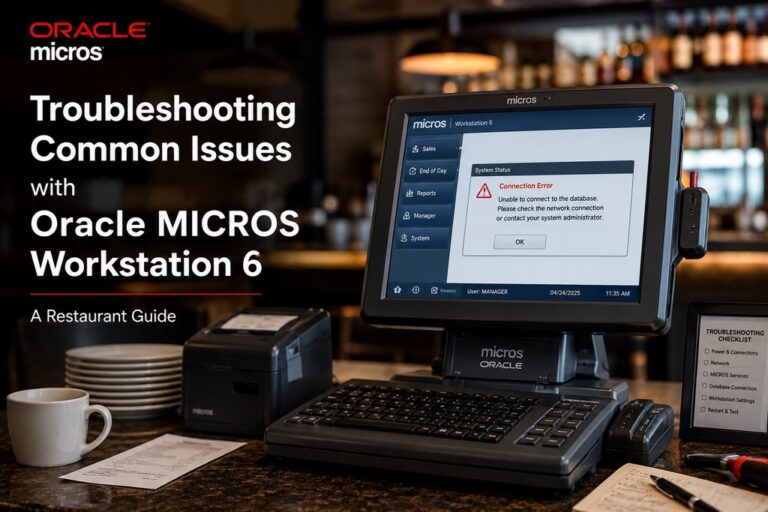
“In 12 years of working with MICROS deployments across restaurants and hotels in the US, the pattern is consistent: most downtime incidents during service are caused by the same 6–8 failure types. The hardware is enterprise-grade and built to run under pressure — but it requires a structured diagnostic approach, not guesswork. This guide covers what I actually use in the field to get terminals back online fast.” — Max Artemenko, MICROS Integrated Payments
Disclaimer: Information in this guide is general in nature and does not replace consultation with a qualified specialist. For hardware-level repairs and official patch releases, refer to the Oracle Support portal (support.oracle.com).
This guide covers diagnostics and resolution for Oracle Hospitality POS systems — specifically MICROS Workstation 6 (models 610, 620, 650) — hardware failures, software errors, network drops, peripheral issues, and payment settlement problems. Structured for restaurant operators and IT managers who need actionable steps, not vendor boilerplate.
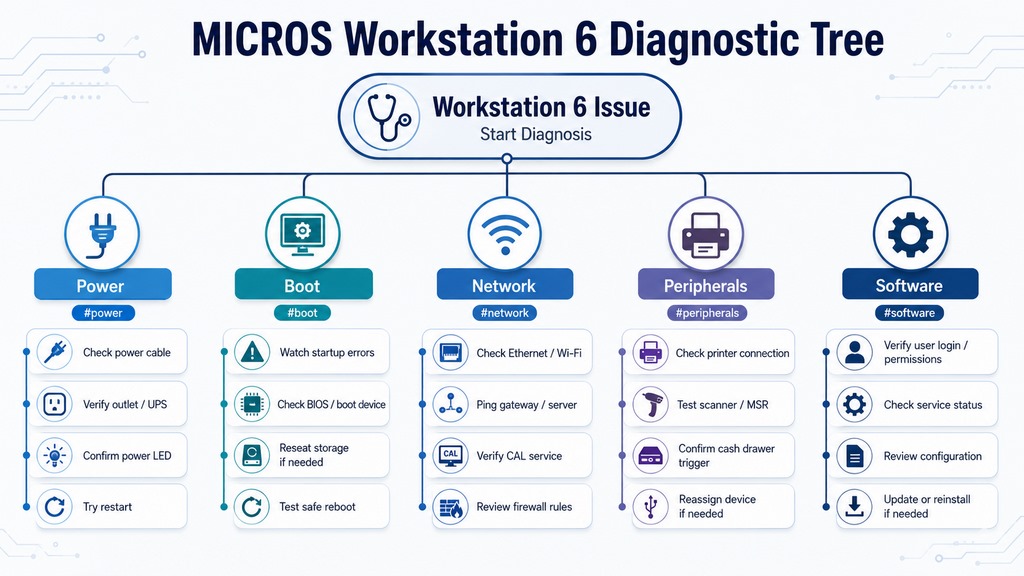
Common MICROS Workstation 6 Error Fixes
Most software errors on the Workstation 6 fall into four categories: CAL sync failures, database connection drops, recovery loops, and performance degradation. Each has a defined resolution path — starting with a soft reboot and escalating to a hard reboot only when necessary.
CAL Version Mismatch
This error shows up when the Client Application Loader version on the terminal doesn’t match the server — typically after a partial update or a server-side change that didn’t fully propagate. Seen it more times than I can count. Learn more about Oracle Micros Simphony POS System configuration requirements.
- Reboot the terminal:
Ctrl+Alt+Delete → Restart - Confirm the CAL version:
Settings → System Information - If version mismatch is confirmed, reinstall CAL from the management server
- Verify network connection and time synchronization before reinstalling — a time delta of more than 5 minutes will cause CAL to reject the server certificate
Database Connection Failed
This error means the terminal lost its connection to the MICROS application server. Start at the physical layer — roughly 60% of these calls resolve at the cable or switch level. For restaurant-specific configurations, see Micros restaurant POS setup guides.
- Check the Ethernet cable at both ends (terminal RJ-45 port and switch)
- Look at the port LEDs: no activity light = cable or switch port issue
- Restart the network adapter:
Settings → Network → Restart Network Adapter - Confirm the terminal IP is in the same subnet as the server
- If the IP is correct and the cable is good, perform a hard reboot
System Recovery Loop
A recovery loop usually points to a storage-level problem — corrupted boot sector or a failing SSD/mSATA drive.
- Power off completely; wait 30 seconds
- Power on and enter BIOS diagnostics: press
F2before the Windows logo appears - Run
Storage Self-Test(HDD/SSD) - If the test returns FAIL, the drive requires replacement — do not attempt to boot again, as continued writes can corrupt recoverable data
Freezing and Slow Performance
Performance degradation during service is usually a RAM or cache issue, not a hardware fault. Don’t wait for the shift to end.
- Close unused applications:
Alt+Tabto identify background processes - Clear cache:
Settings → Maintenance → Clear Cache - Check RAM usage in Task Manager
- If RAM usage exceeds 90%, reboot immediately
| Error Code / Symptom | Cause | Soft Reboot Resolves? | Hard Reboot Resolves? | Next Step if Neither Works |
|---|---|---|---|---|
| CAL Version Mismatch | CAL/server version delta after update | Sometimes | Sometimes | Reinstall CAL from server |
| Database Connection Failed | Network drop or IP mismatch | Yes (50%) | Yes (80%) | Check cable, switch, subnet |
| System Recovery Loop | Corrupt boot / failing SSD | No | No | F2 diagnostics → drive replacement |
| Freezing / Slow Performance | RAM overload or cache bloat | Yes | Yes | Clear cache, check RAM % |
| 0x80004005 Access Error | Network or permissions issue | Yes | Yes | Check network, user rights |
| Blank Screen on Boot | PSU or display driver failure | Sometimes | Sometimes | Check PSU LEDs, display cable |
| Print Queue Stuck | Queue deadlock after failed job | Yes | Yes | Cancel job in print queue manager |
| Offline Mode Active | Sync lost after network drop | No | Yes | Manual sync: Settings → System → Sync Status |
MICROS POS Hardware Repair and Diagnostics
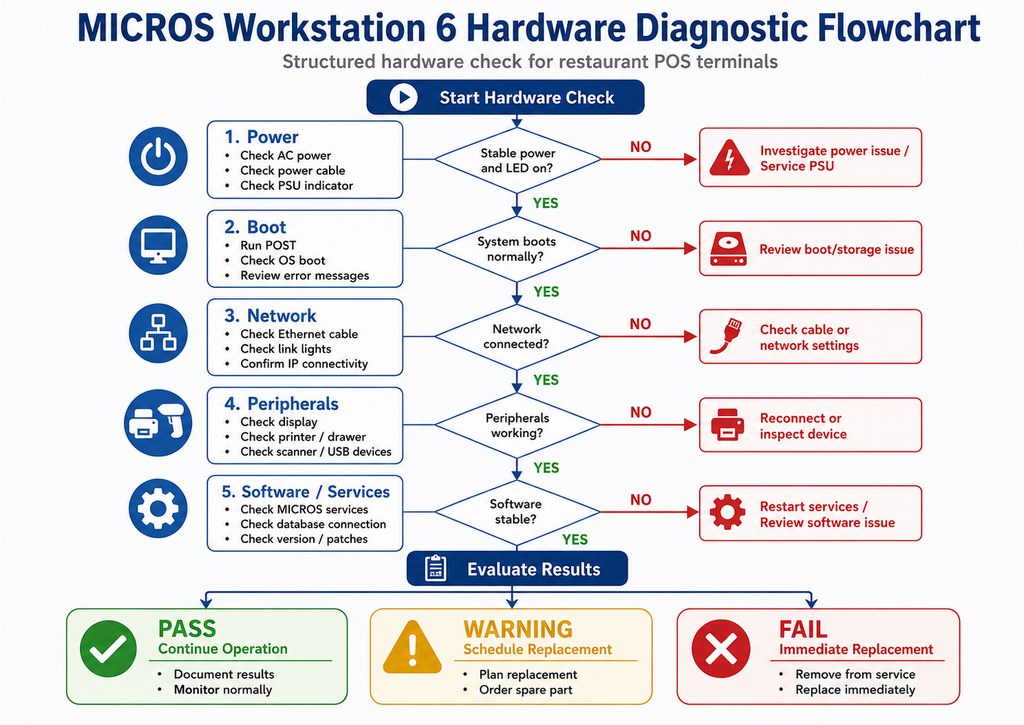
Hardware faults on the Workstation 6 are diagnosable through the built-in F2 utility — no external tools needed. The system returns PASS/FAIL/WARNING for each component. That result tells you whether you replace a CRU yourself or call a technician. Browse POS Terminals & Workstations for replacement hardware options.
Running the Built-In Diagnostic Utility
- Power off the terminal completely
- Power on and press
F2immediately — before the Windows logo appears - Navigate to
Diagnostics → System Tools - Select
Full System Test
Result interpretation:
- PASS (green): Component is functional
- FAIL (red): Component requires replacement
- WARNING (yellow): Component is degraded — plan replacement before failure
Component-Level Diagnostics
RAM: Run Memory Test in the diagnostic utility. Any error = module replacement. RAM is a Customer Replaceable Unit (CRU) on all 610/620/650 models.
SSD / mSATA: Run Storage Self-Test. A WARNING result means you have a window to replace the drive before data loss. A FAIL means replace before the next boot cycle — don’t push it. For display-related hardware, see Micros Touch Screen Monitor options.
Power Supply (PSU): Check the rear-panel LED indicators:
- Green = normal
- Red or amber = PSU fault
- No light = check power cable and outlet first; if those are good, the PSU requires service
Customer Replaceable Units (CRU) vs. Professional Repair
| Component | CRU (Self-Replace) | Requires Technician |
|---|---|---|
| RAM | ✓ | — |
| SSD / mSATA | ✓ | — |
| Battery (backup power models) | ✓ | — |
| Touchscreen module | — | ✓ (requires calibration post-install) |
| Motherboard | — | ✓ |
| Power Supply Unit (PSU) | — | ✓ |
| Processor | — | ✓ (soldered to board) |
CRU replacement procedures are documented in the Oracle MICROS Workstation 6 Hardware Replacement Guide, available through the Oracle Support portal. Always confirm part numbers against your specific model (610/620/650) before ordering.
Display and Touchscreen Troubleshooting
For Micros Touch Screen Monitor hardware specifications and replacement options, see the product page.
How to Fix Touchscreen Calibration Issues
Touchscreen calibration errors typically show up as coordinate offset, missed inputs, or ghost touches. Recalibration resolves most cases. Hardware replacement is only necessary when the digitizer layer is physically damaged.
Calibration procedure:
Settings → Display → Touchscreen Calibration- Select
Start Calibration - Tap each calibration point precisely at the center of the marker — off-center taps produce a skewed calibration matrix
- Complete all 5 or 9 points depending on software version — 9-point calibration provides nonlinear distortion correction with error margin under 2% (Google Android Debug Bridge documentation, 2023)
- Select
Save, then reboot - Verify accuracy in test mode before returning to service
If calibration doesn’t resolve the issue:
- Clean the screen surface (see cleaning procedure below)
- Inspect the sensor cable at the rear panel — a loose connection causes intermittent ghost inputs
- Update the touchscreen driver:
Settings → Drivers - Persistent issues after driver update = digitizer module replacement required
Capacitive touchscreens become susceptible to false touches at humidity above 70% RH, with susceptibility increasing approximately 40% under those conditions (NIST SP 1800-15, Mobile Device Security, 2020). In kitchen-adjacent or bar environments, that’s an operational factor — not a hardware defect.
Blank or Flickering Display
Black screen:
- Check the video cable (HDMI or VGA) at both ends
- Confirm the monitor is powered on and set to the correct input source
- Restart the display driver:
Settings → Display → Restart Display Driver - If the screen remains black after driver restart, perform a hard reboot
- If front-panel LEDs are off after reboot, the fault is in the PSU — not the display
Flickering screen:
- Set refresh rate to 60 Hz:
Settings → Display → Refresh Rate - Inspect the video cable for physical damage
- Route the cable away from power cables and kitchen equipment — electromagnetic interference from motors and heat lamps affects video signal integrity
Adjusting Brightness and Contrast
Optimal settings for a restaurant POS environment: Brightness 80–100%, Contrast 70–85%, Gamma 2.2. Access path: Settings → Display → Advanced Display Settings → Save Profile
Cleaning the Glass to Prevent Ghost Touches
Grease and moisture on the digitizer surface create capacitive coupling that the sensor misreads as touch input. This is one of those things that’s easy to skip and expensive to ignore. Clean at the end of every shift.
- Use a lint-free microfiber cloth dampened with distilled water or a screen-safe cleaner — no alcohol, acetone, or abrasives
- Wipe in circular motions without heavy pressure; allow to dry completely before use
- Run calibration check weekly in high-humidity environments (bar areas, dishwashing proximity)
Resolving MICROS Workstation 6 Network Errors
Network errors follow a predictable failure chain: physical layer → IP configuration → server sync. Start at the physical layer every time. For Micros Oracle POS System network architecture details, see the product documentation.
Step 1 — Physical Layer: Inspect the Ethernet cable at both ends. Check port LEDs: no activity light = dead cable or disabled switch port. Swap with a known-good cable before moving on.
Step 2 — Restart Network Adapter: Settings → Network → Ethernet → Restart Network Adapter. Wait 10–15 seconds, then check status.
Step 3 — Verify IP Configuration: Settings → Network → Network Configuration. Confirm the terminal IP is in the same subnet as the application server and the gateway matches. Correct manually or switch to DHCP if addresses are wrong.
Step 4 — DNS Check: Open command prompt (Ctrl+Shift+Cmd) and run ping 8.8.8.8. No response = router or upstream network issue.
Step 5 — Exit Offline Mode:
Settings → System → Offline Mode— if toggle is ON, switch to OFF- Monitor sync completion:
Settings → System → Sync Status— allow up to 5 minutes - Verify all pending transactions before resuming service
“Prolonged offline mode operation creates data synchronization risk. The longer a terminal operates disconnected from the application server, the larger the transaction delta that must reconcile on reconnect. In high-volume environments, this reconciliation can take several minutes and may surface conflicts in payment records. The safest operational rule: treat offline mode as an emergency state, not a workaround.” — Max Artemenko, from field deployments
MICROS Workstation 6 Network Diagnostics Checklist
Use this checklist before escalating a MICROS Workstation 6 network issue. It follows the safest diagnostic order: physical connection, adapter status, IP configuration, server sync, offline mode, and pending transactions.
Peripheral Device Connection Check
Printers: Settings → Devices → Printers → Check Connection. If Offline: restart the printer, confirm it’s on the same network segment, select Reconnect.
Cash Drawer: Settings → Devices → Cash Drawer → Test Connection. Failed test with confirmed good cable = drawer or interface board replacement. See Printers & Cash Drawers and Micros APG Series-4000 Cash Drawer for compatible hardware.
Barcode Scanner: Settings → Devices → Scanner → Test Scan. No response: check battery (wireless) or cable (wired). For USB scanners, try a different USB port before replacing the unit. See Micros Barcode Scanner for compatible models.
Troubleshooting MICROS Workstation 6 Payment and Batch Settlement
Payment processing failures are typically connection-dependent — the terminal can’t reach the payment gateway, or the gateway returns an error during batch close. For a broader overview, see Payment Processing for Restaurants & Hospitality.
Common Payment Errors
Payment Terminal Not Responding: Check the physical connection (USB or Ethernet), power-cycle the payment terminal (disconnect 30 seconds), then Settings → Payment Devices → Terminal Status. If Offline: switch to Online and retry. For EMV hardware, see Free EMV Terminals for Micros 3700 or Simphony and Micros Ingenico Lane 3000 EMV NFC reader.
Batch Settlement Failed: Confirm internet connectivity, verify the terminal clock matches server time — a time delta causes settlement rejection at the processor level. Wait 5–10 minutes and retry. If the error persists after two attempts, contact your payment processor with the batch ID and timestamp.
Credit Card Processing Declined: Declined transactions are issuer-side by default. Verify card expiry, re-enter card data manually if swipe/dip failed, ask the customer to use an alternate card. Do not retry the same card more than twice without customer confirmation.
Recovering Pending Transactions: Settings → Payment History → Pending Transactions → [Select] → Retry. If retry fails: void the transaction, have the customer re-initiate payment. Manual sync: Settings → Payment Sync → Manual Sync — allow 2–5 minutes.
| Payment Error | Root Cause | Self-Resolve | Contact Processor |
|---|---|---|---|
| Terminal Not Responding | Cable / power issue | ✓ | No |
| Batch Settlement Failed | Connectivity or time delta | ✓ (retry after fix) | If 2+ failures |
| Card Declined | Issuer rejection | No | No (issuer-side) |
| Gateway Timeout | Network latency | ✓ (retry) | If persistent |
| Duplicate Transaction Alert | Double-submit | ✓ (void one) | If both settled |
| Manual Entry Rejected | Card number / CVV error | ✓ (re-enter) | No |
End-of-Shift Batch Settlement — Step-by-Step
For reconciliation best practices, see Payment Settlement, Funding, and Reconciliation.
- Confirm all transactions are processed and visible in payment history
Settings → Shift Management → Close Shift- Review the generated sales report — total must match physical cash count
- Select
Confirm Batch Settlement - Wait for confirmation (typically 30–60 seconds)
- No confirmation after 90 seconds = check connectivity and retry
If settlement freezes: check internet connectivity, reboot, and retry. If the issue persists across two attempts, contact Oracle Support with your batch ID and terminal serial number.
Note: Schema.org HowTo markup (schema.org/HowTo) with HowToStep properties — name, text, duration, result — is recommended for this procedure to enable Rich Snippet display in search results (Google Search Central, 2024).
Fixing MICROS Workstation 6 Printer and Routing Issues
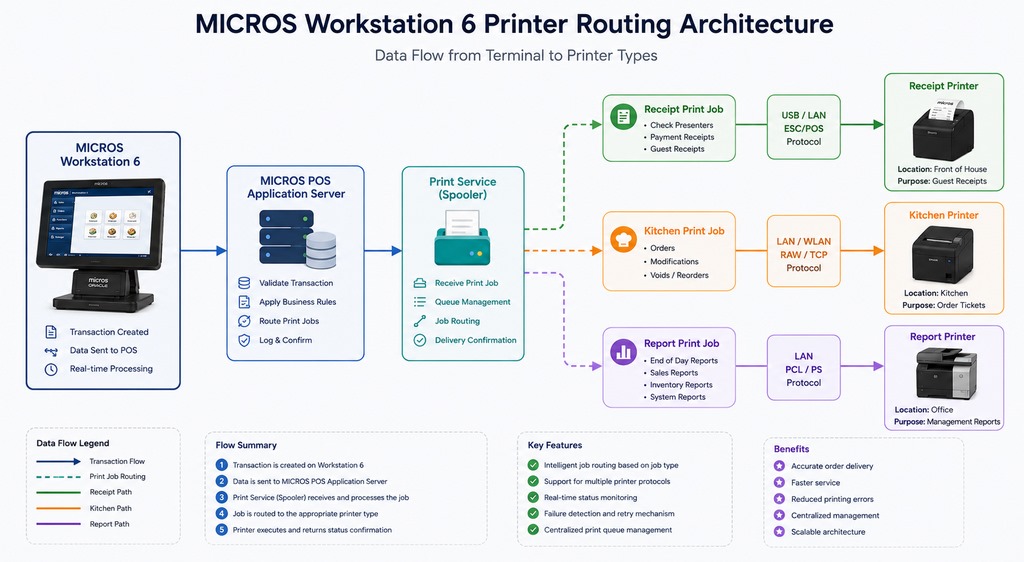
Printer failures during service are high-impact. A kitchen printer that stops receiving orders creates immediate operational breakdown — and in a busy dinner rush, 10 minutes offline can mean 3–5 orders that never reach the kitchen. The diagnostic sequence: status check → physical connection → routing configuration. See Micros Epson TM-U220 Remote Kitchen Printer for compatible kitchen printer hardware.
Diagnosing Printer Errors
Printer Not Found / Offline: Verify power, check physical connection, Settings → Devices → Printers → [Printer Name] → Status → Reconnect. If Reconnect fails: power-cycle the printer, wait 15 seconds, retry. For kitchen display integration, see Micros Kitchen Display System (KDS).
Print Queue Stuck: A deadlocked queue blocks all subsequent jobs. Settings → Devices → Print Queue → [Stuck Job] → Cancel. Reboot the terminal, then reprint.
Kitchen Printer Not Receiving Orders: This is a routing configuration issue in most cases. Settings → Routing → Kitchen Printer — confirm Status = “Active” and the printer is reachable on the network. If misconfigured: delete and recreate the route.
Print Routing Configuration
Routing defines which document type goes to which printer. A missing route is exactly why kitchen orders stop printing when the receipt printer is fine — two separate paths, two separate failure points.
Settings → Routing → Add New Route- Select document type: Receipt, Kitchen Order, or Report
- Select target printer, set copies and paper size
Save → Apply
Verify all routes: Settings → Routing → View All Routes. Every active printer must have at least one assigned route — a printer with no route will never receive jobs regardless of connection status.
Cash Drawer Diagnostics
Inspect the cable (RS-232 or USB) at both ends, then Settings → Devices → Cash Drawer → Test Connection. The drawer should open and emit a click. No response with a confirmed good cable = drawer interface or solenoid replacement. See Micros APG Series-4000 Cash Drawer for replacement options.
Auto-open after receipt print: Settings → Routing → Receipt Printer → Cash Drawer Integration → Open Cash Drawer After Print = ON. This is the most commonly missed configuration after a system reinstall — worth checking first.
Reconnecting All Peripheral Devices After a Reboot
Power off all peripherals → reboot the terminal → power on in order: Printer → Cash Drawer → Scanner. Wait 10–15 seconds per device for initialization. Verify each: Settings → Devices. See Printers & Cash Drawers for compatible hardware.
Professional MICROS Restaurant POS Support and Maintenance
Scheduled maintenance is what separates systems that run reliably for years from systems that fail unpredictably during service. The difference is usually not hardware — it’s discipline. For professional support, see Technical Support for your Micros POS.
Maintenance Schedule
| Frequency | Tasks |
|---|---|
| Daily | Check terminal status at shift start · Clean touchscreens · Confirm peripherals online · Verify server sync |
| Weekly | Full reboot of all terminals · Review error logs · Clear cache · Check for software updates |
| Monthly | Create configuration backup · Check disk space (maintain ≥20% free) · Update device drivers · Review security audit logs |
Employee Access Management
“One of the most common support calls I get from restaurant groups is a lockout because someone left the default admin credentials in place after installation. Role-based access isn’t just a security measure — it’s operational discipline. When a cashier can’t accidentally access system settings, you eliminate an entire category of support incidents.” — Max Artemenko, MICROS Integrated Payments
Creating user accounts: Settings → User Management → Add New User → assign role and permissions → Save
Password policy: Minimum 8 characters (letters + numbers + special characters), rotate every 90 days, disable inactive accounts within 30 days of departure, review login logs monthly.
| Role | Payment Processing | Reports | User Management | System Settings |
|---|---|---|---|---|
| Manager | ✓ Full | ✓ Full | ✓ Full | ✓ Full |
| Supervisor | ✓ Full | ✓ View | ✗ | ✗ |
| Cashier | ✓ Transactions | ✗ | ✗ | ✗ |
| Kitchen Staff | ✗ | ✗ | ✗ | ✗ |
| IT Admin | ✗ | ✓ Full | ✓ Full | ✓ Full |
Peak-Hour Performance
Reboot all terminals at the start of the day — not mid-service. Close all non-POS background processes. Confirm server resource headroom: CPU /` структура для вопросов ниже.]
What operating system does MICROS Workstation 6 run?
Depending on model and production year, the Workstation 6 runs Windows Embedded POSReady 7 or Windows 10 IoT Enterprise. Check your version at Settings → System Information → OS Version.
How do I update MICROS Workstation 6 software?
Settings → System → Check for Updates. The system downloads and installs available updates automatically. Schedule updates during off-hours — installation requires a reboot.
Is MICROS Workstation 6 compatible with Oracle MICROS 3700 PMS?
Yes. Integration is configured at Settings → Integration → PMS Connection. Requires correct IP address and port configuration matching the PMS server. See Direct Integration with Micros Opera PMS system for setup details.
What do I do if the terminal freezes during boot?
Hard reboot first — disconnect power for 30 seconds. If the freeze recurs, boot into Safe Mode (F8 during startup) and run diagnostics. Repeated boot failures after diagnostics indicate a hardware fault requiring service.
How do I recover a forgotten admin password?
Contact Oracle Support with proof of system ownership. Oracle provides the reset procedure — self-reset is not available by design. Do not attempt to bypass this through third-party tools, as it may void support eligibility.
How do I recover a forgotten admin password?
Contact Oracle Support with proof of system ownership. Oracle provides the reset procedure — self-reset is not available by design. Do not attempt to bypass this through third-party tools, as it may void support eligibility.
What is the maximum database size supported?
Depends on installed storage (SSD or mSATA) — typically 500 GB to 1 TB. For high-volume operations, implement regular data archiving and purge cycles to maintain performance as the database grows.
How do I integrate a loyalty system with MICROS Workstation 6?
Settings → Integration → Loyalty System. Requires an API key from your loyalty provider and correct endpoint configuration. Test the integration in a non-production environment before going live.
What does error code 0x80004005 mean?
General access error — most commonly caused by a network connectivity issue or insufficient user permissions. Check network status, reboot, and retry. If the error persists, review user role permissions and contact support with the full error log.
How do I enable Debug Mode for diagnostics?
Settings → System → Advanced → Debug Mode. This generates detailed operation logs. Use only for active diagnostic sessions — debug mode increases system load and should be disabled immediately after log collection.
What is the standard warranty period for MICROS Workstation 6?
Standard warranty is 1 year from purchase date. Extended coverage up to 3 years is available. Confirm your specific terms in your purchase documentation or Oracle support portal.
Get Expert MICROS Workstation 6 Support Now
If diagnostics return hardware FAIL results, the terminal won’t complete a full boot cycle, or the issue involves integration with external systems — that’s the point to bring in a specialist. Self-repair beyond CRU replacement carries risk of voiding warranty and compounding the fault.
When to Contact Support
- F2 diagnostics return FAIL on any component
- Terminal does not complete boot after hard reboot
- CRU replacement required but outside your team’s capability
- Payment integration or PMS sync issues that persist after standard troubleshooting
- Performance optimization for a multi-terminal network
What to Prepare Before You Call
- Terminal serial number (rear panel label)
- Software version:
Settings → System Information → Software Version - Exact error message and reproduction steps
- Exported error logs:
Settings → System → Export Logs - LED indicator status (photograph if possible)
- Network configuration details (IP, subnet, gateway)
Contact MICROS Integrated Payments via Technical Support for your Micros POS or Get in Touch. Our team specializes in Oracle MICROS deployments for restaurants, hotels, and multi-location operations across the US. Response on business-critical issues within the same business day.
Clients who work with us consistently note what matters most in a POS support relationship: availability when it counts and someone who understands the system at the architecture level — not just the user interface. One long-term client put it directly: ‘Max is always available to answer any questions and keeps you up to date with all important information.’ That’s the standard we hold for every engagement.” — Max Artemenko, MICROS Integrated Payments