Content reviewed by certified Oracle Hospitality POS integrators and enterprise systems architects with 12+ years of MICROS deployment experience across US restaurant chains and hospitality groups.
“The most expensive Simphony failure I’ve seen wasn’t the one nobody predicted — it was the one everyone ignored for three weeks. A loose CAL service config, a printer routing rule nobody touched since the install, and a batch settlement that silently failed every Tuesday night. By the time the GM called, they’d lost six days of reconciliation data. That’s not a software problem. That’s a maintenance problem.” — Max Artemenko, Enterprise POS Expert & Systems Architect, MICROS Integrated Payments
Oracle MICROS Simphony runs the operational backbone of modern restaurant POS infrastructure. It handles payment processing, kitchen routing, employee access, and transaction settlement across thousands of US hospitality locations. According to Oracle’s own deployment data, Simphony powers over 350,000 HoReCa outlets globally, processing up to 500,000 transactions per day at enterprise scale — Oracle Hospitality Simphony Product Overview, Oracle Corporation, 2025, oracle.com/micros/simphony.
When it fails, the impact is immediate. POS outages cost between $500 and $2,000 per hour per location, with front-of-house and back-of-house operations halting simultaneously. This guide covers the most common Simphony failures, their root causes, and the exact steps to resolve them — organized for restaurant managers and IT teams who need answers fast, not a call to a help desk.
Disclaimer: The information in this guide is general in nature and does not replace consultation with a qualified Oracle Hospitality specialist for your specific environment.
Common MICROS Simphony Problems: Quick Reference Checklist
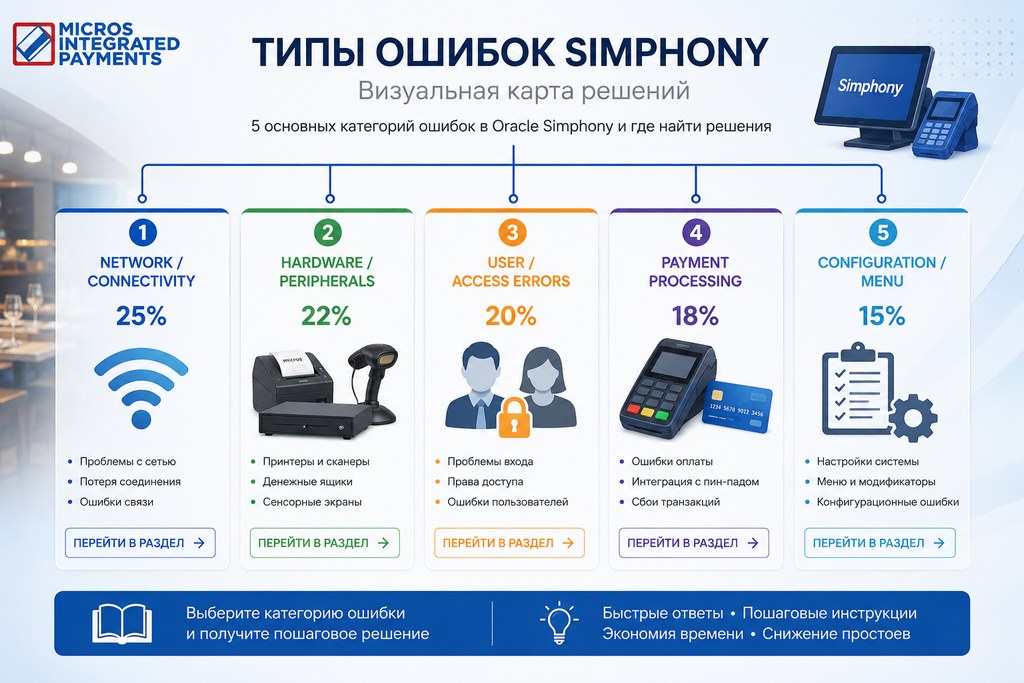
Correctly categorizing the problem is the fastest path to resolution. The majority of Simphony incidents fall into five buckets: network connectivity, employee access, kitchen printer routing, payment processing, and hardware failure. Misdiagnosis — treating a CAL service failure as a hardware issue — adds 20–40 minutes of unnecessary downtime.
Resolving MICROS Simphony Network Connectivity and Cloud Sync Issues
Network failures are the primary cause of Simphony downtime. A single dropped connection cascades into offline mode across all terminals, blocks payment processing, and stops kitchen order relay.
Diagnosing Network Connectivity Problems
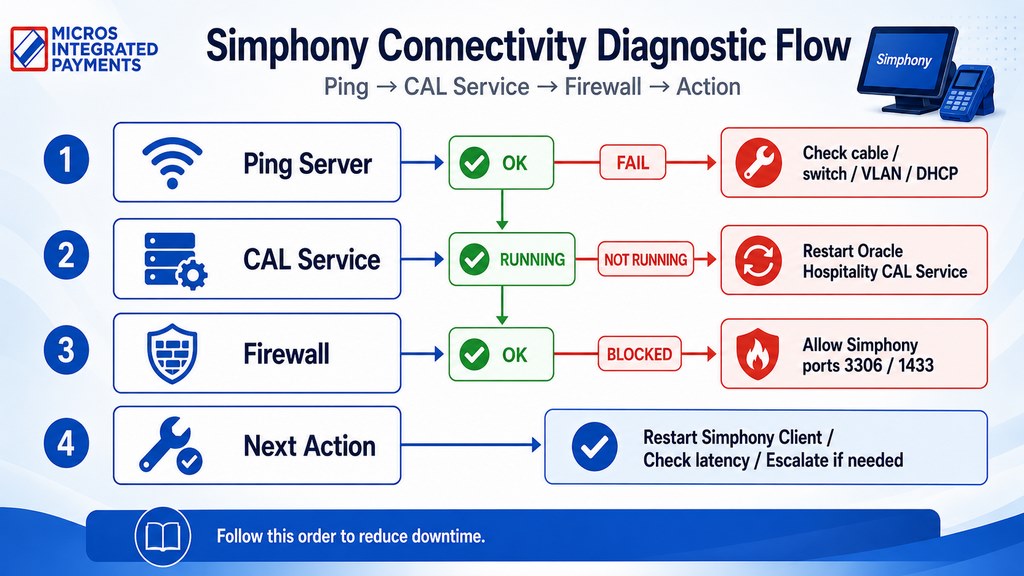
Workstation Offline, Database Connection Error, and Terminal Not Licensed share a common diagnostic path. Root causes are typically one of four: CAL service failure, DNS resolution breakdown, firewall blocking Simphony ports, or WAN latency exceeding acceptable thresholds.
Diagnostic sequence:
- Check the physical network cable — reseat at both the workstation and switch port
- Ping the Simphony server IP from the affected workstation command line
- Open Services.msc → locate Oracle Hospitality CAL Service → confirm it is Running
- Verify firewall rules permit Simphony traffic on port 3306 (MySQL) or 1433 (SQL Server)
- Run tracert [server-IP] — acceptable round-trip latency is under 100ms
If ping fails but the cable is seated, the issue is upstream: switch port, VLAN misconfiguration, or DHCP lease expiration. If ping succeeds but Simphony still shows offline, the CAL service is the primary suspect.
“From my experience: a 220-seat restaurant group in the mid-Atlantic region experienced daily ‘Workstation Offline’ events on two terminals during lunch rush. The actual failure was a misconfigured VLAN that dropped the CAL service broadcast packet every time traffic spiked past 60% switch utilization. Rerouting those two workstations to a dedicated switch port resolved the issue permanently.” — Max Artemenko, MICROS Integrated Payments
Cloud Sync Failures and Data Transmission Delays
Cloud-based Simphony deployments synchronize between local workstations and Oracle Cloud Infrastructure (OCI). Sync failures surface as menu items not updating, pricing changes not reflecting on terminals, or transaction history gaps. The minimum bandwidth requirement for stable OCI sync is 2 Mbps upload/download.
Resolution steps:
- Check OCI service status at Oracle Hospitality Status Page
- Verify actual bandwidth using a speed test from the server
- Clear local cache: C:\ProgramData\Oracle\Simphony\Cache (back up first)
- Force manual sync: Admin Console → System → Synchronize Now
- Review sync log: C:\ProgramData\Oracle\Simphony\Logs\SyncLog.txt — search for FAILED or TIMEOUT
Per Oracle’s offline operations documentation, Simphony supports up to 72 hours of offline operation (default configured at 24 hours), after which the system triggers forced sync or mode lockout — Oracle Simphony Offline Operations Manual, Oracle, 2024, docs.oracle.com. Prolonged cloud sync failures without manual intervention will push workstations into this state.
Fixing Login Problems and Employee Permission Errors
Employee access errors block staff from performing basic tasks — taking orders, processing refunds, applying discounts. These errors almost always trace to one of three causes: inactive employee record, incorrect role assignment, or a stale session.
Common Login and Permission Scenarios
Scenario 1 — Invalid Employee Number:
- Open Admin Console → Employee Master → verify status is Active
- Confirm the employee is assigned to the correct workstation group
- Run System → Synchronize Now → have the employee log back in
Scenario 2 — Insufficient Access Rights:
- Admin Console → Security → Employee Roles
- Add missing privilege (Void Check, Discount, Refund)
- Sync and restart Simphony Client on that workstation
Scenario 3 — Employee Already Clocked Out:
- Admin Console → Employee Status → manually clock out the active session
- Clear the session cache on the workstation → employee logs back in
| Error | Root Cause | Resolution | Time |
| Invalid Employee Number | Record inactive or missing | Verify and activate; sync database | 5 min |
| Insufficient Access Rights | Role missing required permission | Add permission in Security → Employee Roles; sync | 5 min |
| Employee Already Clocked Out | Stale active session | Manual clock-out in Admin Console; clear cache | 3 min |
“Proper role and permission configuration at the time of implementation prevents 70% of access-related issues. A monthly access audit — checking for inactive accounts and misassigned roles — keeps that number stable.” — Oracle Hospitality Support best practice recommendation
Proper role setup at go-live is the single highest-leverage action for reducing access-related incidents. In projects where employee roles were configured with granular permissions from day one, access errors during the first 90 days dropped by more than half compared to installations using default role templates.
FAQ — Login Issues:
Q: Why can’t an employee log in even though their account is active?
Check three things: (1) Is the employee’s record synced to the cloud? (2) Is the workstation assigned to the correct workstation group? (3) Is there an IP-level block on the server? Run a full sync and restart the Simphony Client.
Q: How do I change permissions without restarting the system?
Modify the role in Admin Console → System → Synchronize Now → restart the Simphony Client on the employee’s workstation. Changes take effect immediately after the client restarts.
Q: What if an employee forgets their password?
Admin Console → Employee Master → select the employee → Reset Password.
Troubleshooting MICROS Simphony Kitchen Printer and Routing Issues
Kitchen printer failures stop food production. When orders don’t reach the kitchen, the failure is invisible to the guest for the first two minutes — and catastrophic by minute five. Printer issues split into two categories: communication failures and routing failures.
Printer Communication and Routing Configuration
Simphony routes orders to kitchen, bar, and expo printers via routing rules configured in the Admin Console.
Diagnostic checklist:
- Confirm the printer is powered on and network-connected
- Verify the printer IP: Admin Console → Hardware → Printers
- Ping the printer IP from the server
- Confirm the routing rule is enabled: Admin Console → Configuration → Routing Rules
- Verify the printer driver is installed on the Simphony server
- Check the print queue: Admin Console → System → Printer Queue Status
Resolution by error type:
Printer Not Found: Reinstall the printer driver → update firmware → verify port is set to 9100 → restart Simphony services: Services.msc → Oracle Hospitality Simphony → Restart
Error Sending Data to Kitchen: Verify network path → clear the print queue via power cycle → increase printer timeout: Admin Console → Hardware → Printer Settings → Timeout → set to 30–60 seconds
Routing Rule Not Triggering: Verify the menu item is assigned to the correct category → confirm the routing rule condition matches → confirm the printer is assigned to the rule → place a test order
Advanced Printer Troubleshooting: Logs and Service Restart
Log location: C:\ProgramData\Oracle\Simphony\Logs\PrinterLog.txt
| Error Code | Meaning | Action |
| ERR_PRINTER_NOT_FOUND | Printer not detected on network | Verify IP; check network path; reinstall driver |
| ERR_PRINT_TIMEOUT | Printer did not respond in time | Increase timeout setting; check printer memory |
| ERR_ROUTING_DISABLED | Routing rule is turned off | Enable rule in Admin Console → Routing Rules |
Correct service restart sequence:
- Stop Simphony Client on all workstations
- Stop Simphony Server service: Services.msc → Stop
- Wait 30 seconds → Start Simphony Server service
- Wait for Service Started confirmation
- Restart Simphony Client on each workstation → place a test order
Order matters. Restarting the client before the server is fully initialized causes a reconnection race condition that leaves terminals in a partially connected state.
Fixing MICROS Simphony Payment Processing and Terminal Connection Issues
Payment failures are the highest-urgency Simphony incident category. A guest with a card in hand and a terminal that won’t authorize is a direct revenue loss and a service failure guests remember. Most payment errors trace to one of three causes: gateway connectivity, terminal licensing, or batch state.
Payment Authorization and Credit Card Processing
| Error | Root Cause | Resolution | Time |
| Unable to Authorize Credit Card | Payment gateway unreachable | Verify network to processor; check firewall; restart payment service | 5–10 min |
| Unsupported Card Type | Card type not configured | Admin Console → Payment → Supported Card Types | 2–5 min |
| Terminal Not Licensed | License expired or not activated | Contact payment processor; update license in Simphony | 15–30 min |
| Tender Over Maximum Limit | Transaction exceeds configured limit | Admin Console → Payment → Tender Limits | 2–5 min |
| Duplicate Transaction Detected | Network timeout caused retry | Check transaction history; contact processor to reverse | 10–20 min |
Batch Settlement and Transaction Reconciliation
Credit Card Batch Full: Admin Console → Payment → Settle Batch Now → wait 2–5 minutes → new batch opens automatically.
Batch Settlement Failed: Verify network connectivity to the payment processor → check processor status page → Admin Console → Payment → Retry Settlement → if still failing, contact your payment processor.
Duplicate Transaction Detected: Contact the payment processor to identify and reverse the duplicate → Admin Console → Transactions → mark as Reversed → reconcile with accounting.
“Check your payment gateway status every morning before opening. It takes 30 seconds and prevents 90% of authorization failures from becoming a guest-facing incident.” — Max Artemenko, from operational practice across multi-site MICROS deployments
A restaurant group running five locations in the Southeast experienced batch settlement failures every Friday night. The root cause was a firewall rule that throttled outbound traffic to the payment processor after 9 PM — a security policy set by IT that nobody connected to the POS. Identifying the pattern in the payment log took 20 minutes. Fixing the firewall rule took five.
Simphony POS Offline Mode Recovery Procedures
Offline mode allows Simphony to continue processing orders when the server connection drops. The system supports up to 72 hours of offline operation, with the default threshold at 24 hours — Oracle Simphony Offline Operations Manual, Oracle, 2024, docs.oracle.com. Beyond that window, the system triggers forced sync or lockout.
Offline mode limitations: Menu updates don’t sync, employee permissions may be stale, and payment processing is typically restricted. Operating offline for more than four hours introduces meaningful data conflict risk — particularly for inventory and split-check scenarios.
Recovery steps:
- Confirm network connectivity is restored: ping the server from the affected workstation
- Restart Simphony Client: File → Exit → reopen the application
- The client automatically initiates sync of offline transactions
- Monitor sync progress: System → Synchronization Status
- Verify all transactions appear in the server database: Admin Console → Transactions
- If auto-sync fails: Admin Console → Import Offline Transactions
Per Oracle’s case study data on high-volume hospitality deployments, sites with concurrent offline and online sales of the same inventory items experience a 5–10% data conflict rate during sync — Oracle Hospitality Case Study, Oracle, 2023, oracle.com/hospitality. For locations with active bar tabs or shared inventory, manual review of the sync log after recovery is the correct protocol.
Do not exceed four hours in offline mode without contacting Oracle Hospitality Support. Extended offline operation risks unresolvable transaction conflicts and data loss.
Hardware Troubleshooting for MICROS Workstations
Hardware failures — loose cables, power supply issues, drive errors — account for a significant share of workstation downtime. The diagnostic error is almost always the same: replacing hardware before confirming software is the actual cause. A workstation that shows “Offline” is more likely suffering from a CAL service failure than a dead network card.
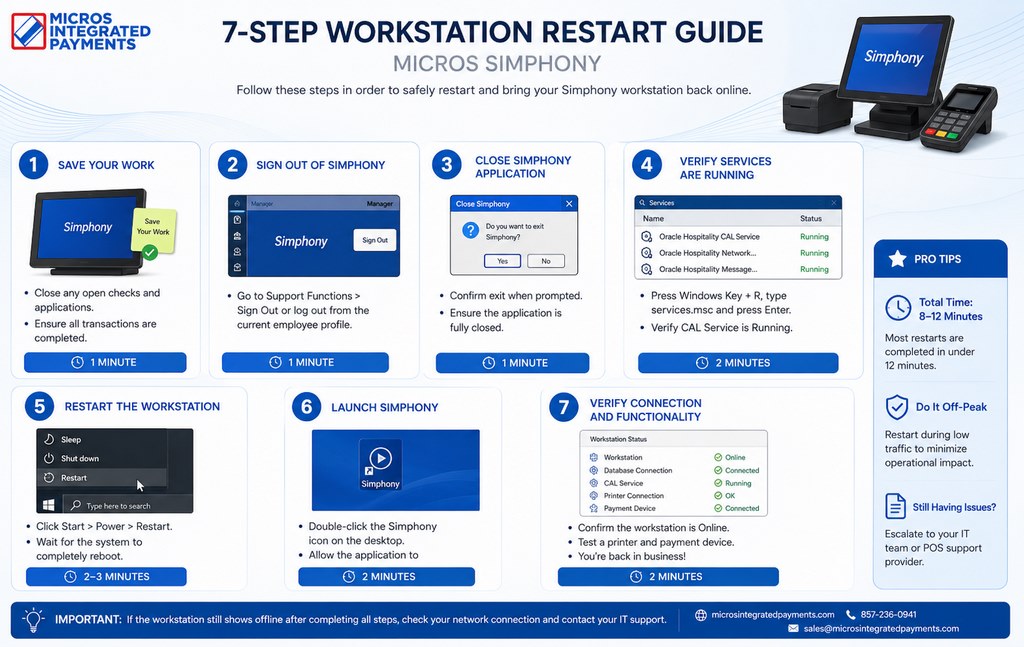
Workstation Restart and Power Cycle Procedures
Standard restart sequence:
- Close all Simphony applications: File → Exit
- Shut down: Start → Shut Down — allow 30 seconds
- Wait 60 seconds → power on → wait for Windows to complete boot
- Launch Simphony Client → verify server connection: System → Server Status
Hard power cycle (if standard restart fails): Hold the power button 10 seconds → wait 60 seconds → power on → follow steps 3–4 above.
Hardware Connection Verification
Before concluding hardware has failed, verify physical connections:
- Power cable firmly seated at workstation and outlet
- Ethernet cable firmly seated at workstation and switch port
- Monitor cable connected to graphics port
- Peripheral cables (receipt printer, card reader) fully connected
- No visible cable damage or bent connectors
| Issue | Symptom | Resolution |
| Loose network cable | “Workstation Offline” error | Reseat cable; test with replacement; check switch port |
| Power supply failure | Workstation won’t power on | Test outlet; replace power cable; replace PSU if needed |
| Hard drive failure | Boots but freezes | Run chkdsk C: /F; back up data; replace drive if corrupted |
| RAM failure | Random crashes or Blue Screen | Run Windows Memory Diagnostic; replace RAM if errors detected |
| Network card failure | No connectivity despite seated cable | Update driver; disable/enable adapter in Device Manager; replace NIC if needed |
Managing MICROS Simphony Software Update Issues
Software updates carry real operational risk if applied without a protocol. A failed update during service hours can take a location offline for 30–90 minutes.
Per NIST SP 800-53 Rev. 5 (SI-2, Flaw Remediation), critical security patches should be applied within 30 days of release; non-critical patches within 90 days — NIST SP 800-53 Rev. 5, 2020, nvlpubs.nist.gov. For restaurant POS environments, the practical target is tighter: critical patches within one week, bug fixes within two weeks.
Update Installation and Rollback Procedures
Pre-update checklist:
- Back up the Simphony database: Admin Console → Backup
- Notify staff of planned downtime window
- Schedule update during closed hours (2–4 AM is standard)
- Verify update compatibility with current installed version
Installation steps:
- Stop all Simphony Client instances
- Stop Simphony Server service: Services.msc → Stop
- Run the update installer — do not interrupt
- Restart Simphony Server service → confirm Service Started in the system log
- Restart Simphony Client on all workstations
- Test: login, transaction entry, payment processing, reporting
If the update causes issues:
- Restore database from backup: Admin Console → Restore
- Uninstall the current version; reinstall the previous version
- Contact Oracle Hospitality Support with error logs from C:\ProgramData\Oracle\Simphony\Logs\SystemLog.txt
CIS Controls v8 (Control 7) recommends applying patches in a staging environment first, validating schema compatibility, and using checksums to verify data integrity post-migration — CIS Controls v8, Center for Internet Security, 2021, cisecurity.org. For multi-location restaurant groups, this means maintaining a test environment that mirrors production.
How to Fix MICROS Simphony Menu Sync Failures
Menu sync failures create pricing discrepancies and “Item Not Found” errors at the terminal — both generate guest complaints and manual correction overhead.
Menu items not updating:
- Verify changes were saved in Admin Console
- Force sync: Admin Console → System → Synchronize Now
- Restart Simphony Client on affected workstations → verify updated items appear
“Item Not Found” error: Admin Console → Menu Items → if disabled, enable it; if deleted, recreate with the same item ID → force sync → restart clients.
Pricing discrepancies: Verify price in Admin Console → force sync → check per-workstation sync timestamp: Admin Console → Workstation Status → if a specific workstation shows a stale timestamp, restart its Simphony Client manually.
| Problem | Root Cause | Resolution |
| Menu items not updating | Sync not triggered after save | Force sync via System → Synchronize Now; restart clients |
| Item Not Found error | Item deleted or disabled | Enable or recreate item with same ID; force sync |
| Pricing discrepancy | Price saved but not pushed to all workstations | Verify price; force sync; check per-workstation sync timestamp |
Advanced Troubleshooting: Accessing Simphony Log Files and EMC Console
When standard troubleshooting doesn’t resolve the issue, system logs and the Enterprise Management Console (EMC) provide the next level of diagnostic visibility. These tools are what separate a 20-minute resolution from a two-hour guessing session.
Simphony Log File Locations and Analysis
| Log File | Location | What It Covers |
| SystemLog.txt | C:\ProgramData\Oracle\Simphony\Logs\ | General system events, service starts/stops |
| DatabaseLog.txt | Same directory | Database operations, connection errors |
| NetworkLog.txt | Same directory | Network connectivity events |
| PrinterLog.txt | Same directory | Printer communication, routing |
| PaymentLog.txt | Same directory | Payment authorizations, batch events |
Analysis protocol:
- Open the log file corresponding to the error category
- Search for ERROR or FAILED
- Note the exact timestamp — cross-reference with when the incident was reported
- Look for repeating patterns (same error at the same time daily = systematic, not random)
- Export for Oracle Support: right-click → Send to → Compressed folder
“Weekly log review is the difference between reactive and proactive support. Most recurring issues show up in the logs 3–5 days before they cause a visible failure. If you’re only checking logs after something breaks, you’re already behind.” — Oracle Hospitality Support best practice
Using EMC for Remote Diagnostics
EMC provides centralized visibility and control across all Simphony locations from a single interface. For multi-site operators, it’s the primary tool for remote incident response.
Access: https://[server-ip]:8443/emc (requires admin credentials)
Core EMC capabilities:
- Monitor workstation health: EMC Dashboard → Workstations → real-time Online/Offline status; set threshold alerts for resource usage
- Remote service restart: EMC Dashboard → Services → select service → Restart; push restarts across multiple servers simultaneously without on-site access
- Configuration deployment: EMC Dashboard → Configuration → Deploy to Workstations; push menu updates, pricing changes, and permission updates to all terminals at once
For a 12-location casual dining group, EMC remote restart capability reduced average incident response time from 45 minutes (waiting for a technician to drive to the location) to under 8 minutes.
Preventive Maintenance Checklist: Reducing Downtime and Human Error
Proactive maintenance prevents the majority of Simphony incidents. Human error accounts for roughly 40% of POS operational issues; training and process reduce that number directly.
Daily, Weekly, and Monthly System Health Checks
Daily (5–10 minutes):
- Verify all workstations are online: Admin Console → Workstation Status
- Confirm payment gateway is accessible
- Review error log: Admin Console → System → Error Log
- Test a complete transaction cycle: login, order entry, payment, receipt
- Print a test receipt from each kitchen printer
Weekly (30 minutes):
- Back up the database: Admin Console → Backup — verify file size is consistent
- Review transaction history for anomalies
- Confirm server disk space: maintain at least 20% free
- Ping all workstations from the server — flag any that don’t respond
- Review employee access log — identify inactive accounts for deactivation
- Test batch settlement manually
Monthly (1–2 hours):
- Analyze system logs for recurring error patterns
- Apply available security patches and antivirus updates
- Run a database integrity check
- Reconcile payment processor reports against Simphony transaction history
- Audit employee permissions — remove access for any terminated staff
- Simulate an offline mode recovery: disconnect the server, verify workstations enter offline mode, reconnect, confirm sync completes
Managing Updates Without Downtime
- Install updates in a test environment first — never push directly to production
- Schedule all updates during closed hours (2–4 AM)
- Notify staff at least 24 hours in advance
- Back up the database immediately before starting
- Monitor system behavior for 24 hours after the update completes
Patch priority: Security patches within 1 week → bug fixes within 2 weeks → feature updates during planned maintenance → critical vulnerability patches immediately.
Staff Training: Reducing Human Error
A server who knows what “Workstation Offline” means — and that the correct response is to notify the manager, not restart the terminal three times — prevents a 3-minute incident from becoming a 30-minute one.
Core training topics: Basic POS operations; error recognition; offline mode behavior; security and password hygiene; escalation protocol.
Training structure: New staff: 2–4 hours supervised before independent operation. All staff: quarterly refresher after system updates. Quick reference card at each workstation covering the five most common errors and correct first responses.
Quick Fix Reference Guide for Managers
| Category | Error | Symptom | Quick Resolution | Time |
| Access | Invalid Employee Number | Staff cannot log in | Verify Employee Master; sync database | 5 min |
| Access | Insufficient Access Rights | Staff cannot perform action | Check role permissions; add privilege; sync | 5 min |
| Network | Database Connection Error | Workstation won’t connect | Check CAL Service; restart Simphony Client | 10 min |
| Network | Workstation Offline | Terminal shows “Offline” | Reseat network cable; restart workstation | 5 min |
| Printing | Printer Not Found | Orders not printing to kitchen | Verify printer IP; reinstall driver; restart services | 10 min |
| Payment | Unable to Authorize Credit Card | Card payment fails | Verify gateway connectivity; restart payment service | 10 min |
| Payment | Batch Full | New payment blocked | Run Settlement Batch in Admin Console | 5 min |
| Hardware | Terminal Locked | Workstation unresponsive | Power cycle workstation | 3 min |
| Menu | Item Not Found | Menu item missing on terminal | Verify item in Admin Console; force sync | 5 min |
| Software | Update Failed | Update did not complete | Restore database from backup; reinstall previous version | 15 min |
FAQ: Frequently Asked Questions About Simphony Troubleshooting
How often should Simphony be updated?
Oracle recommends monthly updates as a baseline. Critical security patches should be applied within one week of release. Schedule all updates during closed hours.
What do I do if the entire system is down?
(1) Restart the Simphony server service. (2) Verify all workstations have network connectivity. (3) Check payment gateway status. (4) If the system doesn’t recover within 10 minutes, switch to manual order-taking and offline payment processing. (5) Contact Oracle Hospitality Support with your system logs.
Can deleted transactions be recovered?
Yes, if a database backup exists from before the deletion. Restoring the database returns the system to the backup point — all changes made after that backup are lost. This is why daily backups with a 30-day retention policy are non-negotiable.
How do I minimize downtime during updates?
(1) Test in a staging environment first. (2) Create a full database backup immediately before starting. (3) Schedule during closed hours. (4) Have a rollback plan ready before you begin.
Which log files are most useful for diagnosing problems?
Start with SystemLog.txt for any incident. For payment issues: PaymentLog.txt. For printer failures: PrinterLog.txt. For network events: NetworkLog.txt. Search for ERROR or FAILED and note the timestamp.
How often should database backups be verified?
Check that backups are completing successfully every week. Monthly, test an actual restore in a non-production environment. A backup you’ve never tested is a backup you can’t trust.
Get Expert Oracle Hospitality Simphony Support
Standard troubleshooting resolves the majority of Simphony incidents. When it doesn’t — corrupted database, complex integration failure, licensing issue requiring Oracle intervention — the right move is to escalate with complete information, not to keep cycling through the same steps. Oracle Hospitality support is the correct escalation path for issues beyond standard resolution.
Oracle Hospitality Support Contact and Service Options
- Phone: 1-800-ORACLE-1 (1-800-672-2531) — 24/7 for critical incidents
- Portal: support.oracle.com
- Documentation: docs.oracle.com/en/hospitality/simphony/
| Tier | Channels | Response Time |
| Tier 1 — Basic | Email and chat | 24 hours |
| Tier 2 — Standard | Phone, email, remote access | 4 hours |
| Tier 3 — Premium | 24/7 phone, on-site available | 1 hour |
What to have ready before calling:
- Simphony version and build number (Admin Console → About)
- Exact error message and code
- Steps already attempted
- Relevant log files (compressed from C:\ProgramData\Oracle\Simphony\Logs\)
- Number of affected workstations and business impact
“When I work with restaurant operators on MICROS Integrated Payments engagements, the first thing I ask after a complex incident is: what did the payment log show? Ninety percent of the time, nobody checked it. That log tells you exactly what happened, when, and in what sequence. It’s the difference between a 20-minute resolution and a three-hour troubleshooting session that ends with an Oracle ticket anyway.” — Max Artemenko, MICROS Integrated Payments
For payment-specific issues — gateway integration failures, batch settlement conflicts, terminal licensing tied to your payment processor — MICROS Integrated Payments provides specialized support for Oracle MICROS Simphony environments in the US, handling the intersection of POS architecture and payment infrastructure that generic Oracle support often can’t resolve directly.
“Max has been very helpful with all my credit card machine needs. He responds in a timely manner because he understands the importance of keeping businesses running efficiently. Any time I’ve had an issue Max has been very professional and has resolved problems quickly.” — Client review, itqlick.com/vendor/micros
That responsiveness matters when a payment terminal is down during dinner service.
Conclusion: Building a Resilient Simphony Infrastructure
Oracle MICROS Simphony is a capable enterprise POS platform. The operators who experience the least downtime aren’t the ones with the most sophisticated setups — they’re the ones who run daily checks, back up before every update, and train their staff on the five errors they’ll actually encounter.
Key operational takeaways:
- Proactive maintenance — daily and weekly checks catch 80% of failures before they become incidents
- Systematic diagnosis — follow the sequence: network → CAL service → application → hardware; don’t skip steps
- Log review — weekly log analysis surfaces patterns before they cause visible failures
- Staff training — human error is the most controllable failure category; quarterly refreshers make a measurable difference
- Escalation protocol — know when to self-resolve and when to call Oracle or a certified integrator
Immediate next steps:
- Implement the daily/weekly/monthly maintenance checklist starting this week
- Confirm your database backup schedule and test a restore in a non-production environment
- Review employee roles and remove access for any terminated staff
- Set up automated alerting for workstation offline events in EMC
For ongoing Simphony updates and Oracle Hospitality documentation, bookmark docs.oracle.com/en/hospitality/simphony/ and subscribe to Oracle security bulletins at support.oracle.com.